Your First Video (Full Order)
Directors Console works like a production order: you write down what you want, and an AI crew makes it. This page takes the shortest path from signup to export. The example is an explainer, but movies and commercials follow the same flow.
1Sign up (free, no password)
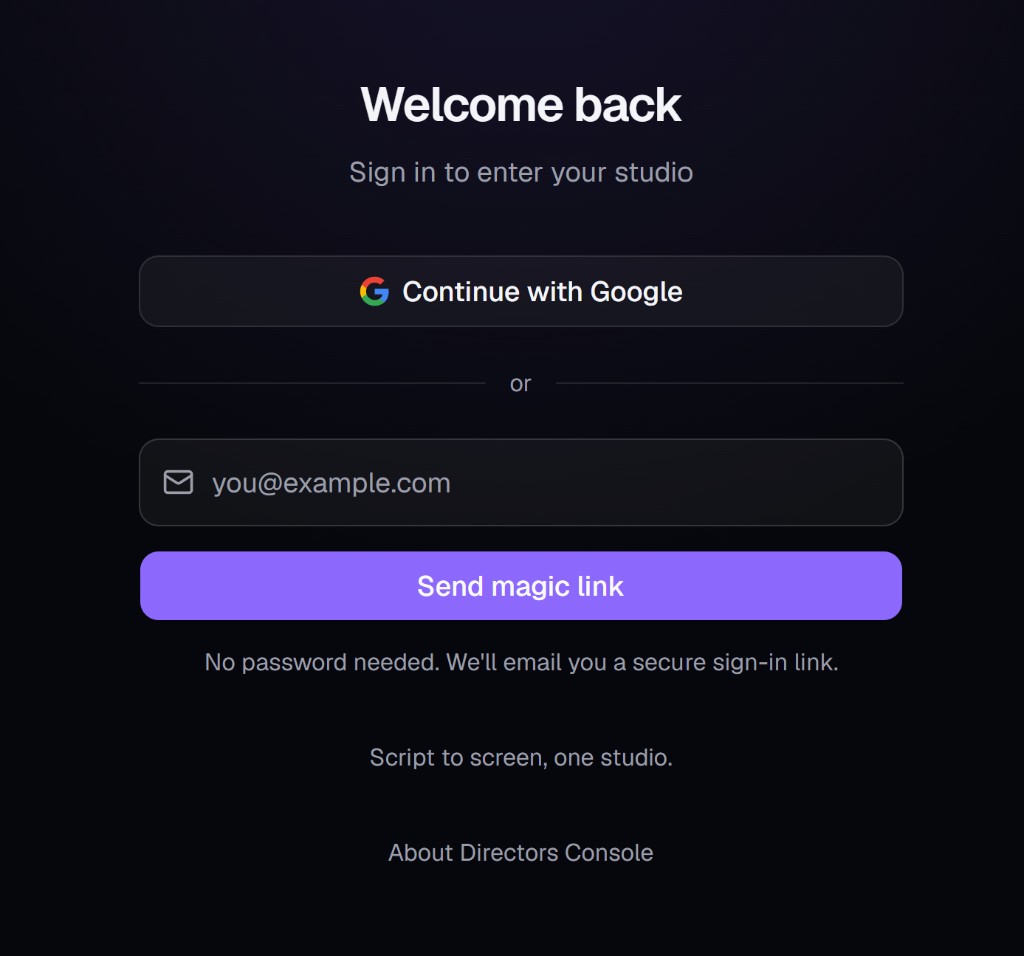
Enter your email on the sign-in page and you'll receive a magic link — no password to manage. Signing up grants 20 free credits.
2Create a project
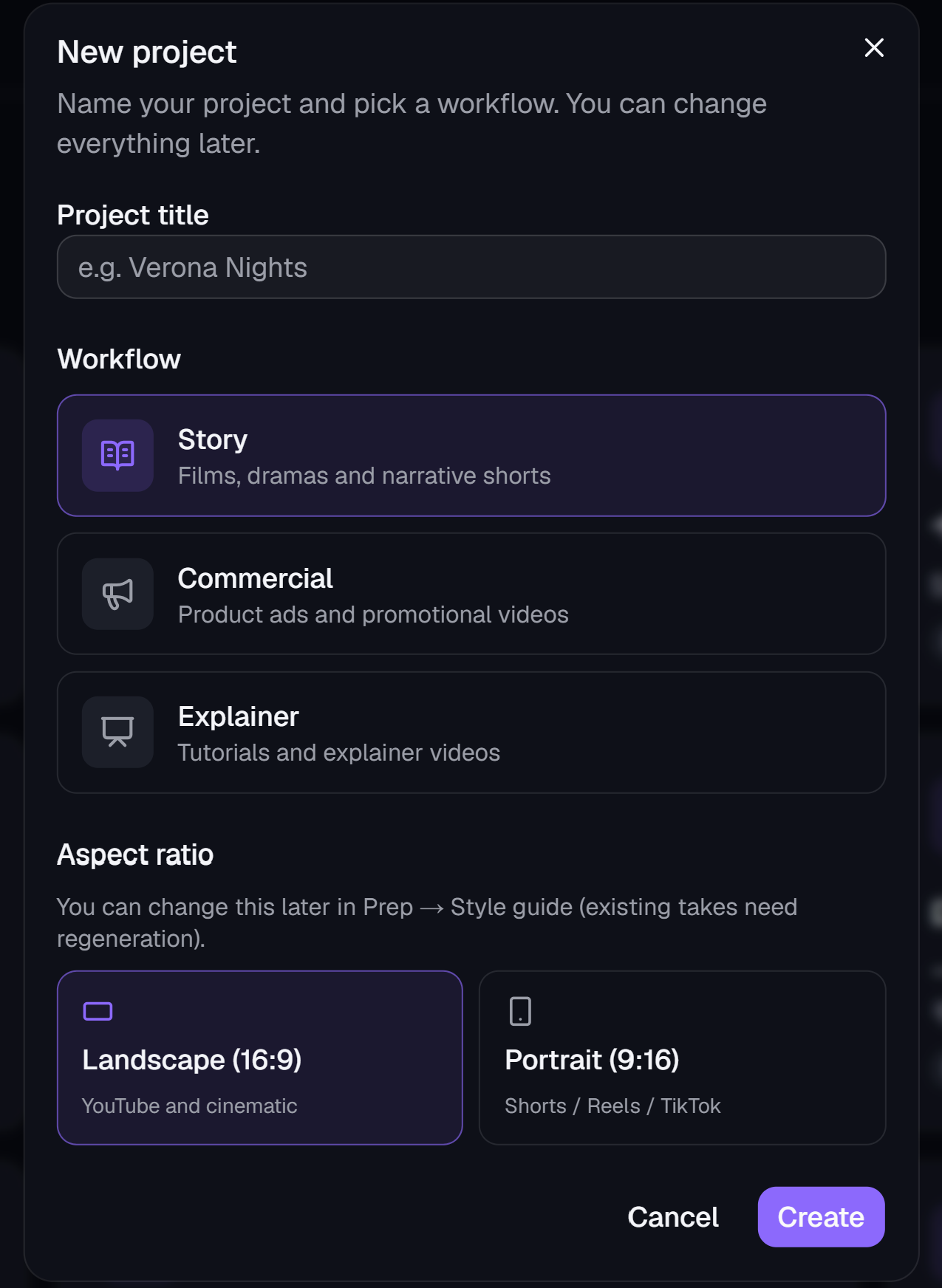
From "New project", pick what you want to make: a movie, a commercial, or an explainer. We'll use an explainer here.
3Open Full Order
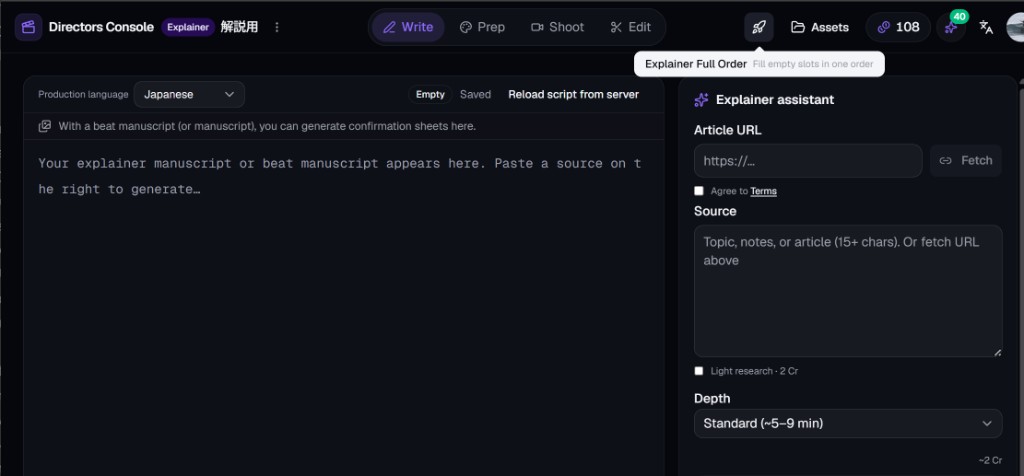
Inside the project, the rocket button — Full Order— sits at the top of the screen. That's your order desk.
4Fill in the order form
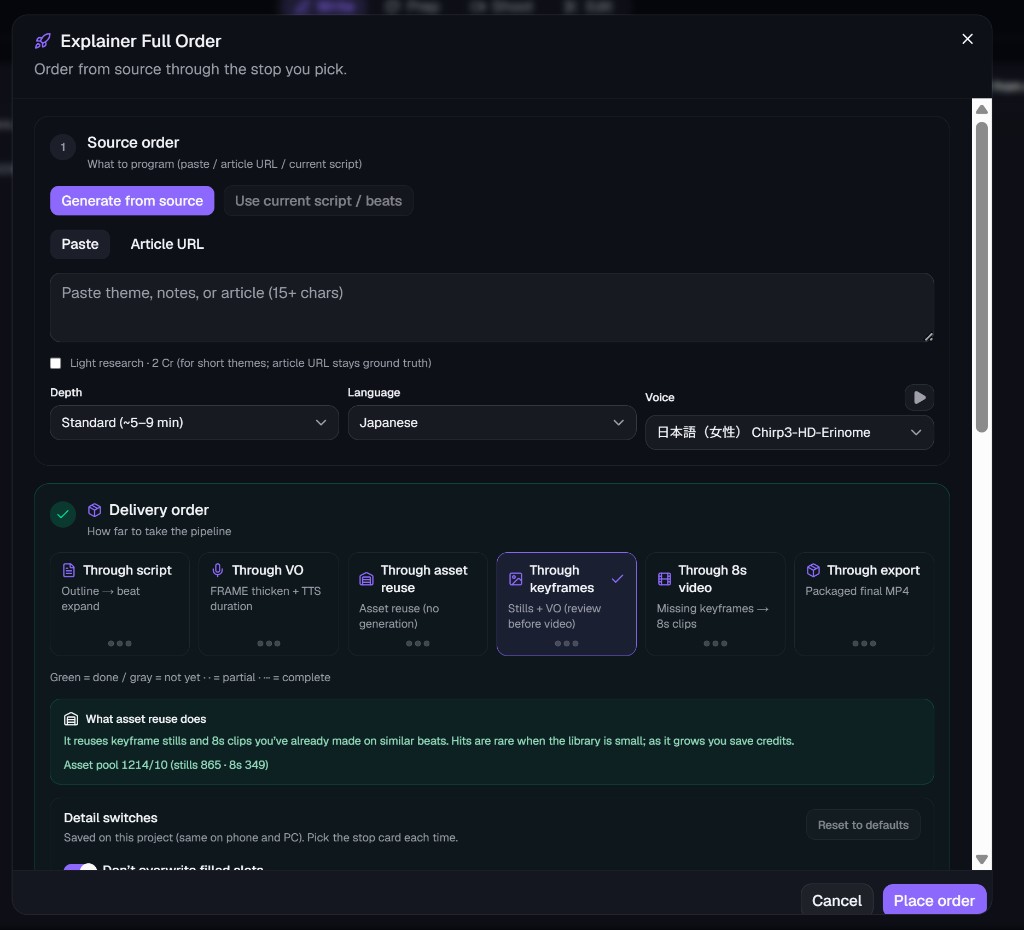
For an explainer, paste your source material(an article URL or text) and pick how far to take it from the recommended sets. You don't need to touch the detail switches — the factory defaults are tuned to be the best balance.
We recommend the default "up to keyframes" (stills + voice) for your first run: approve the visuals and narration before spending on video.
5Check the estimate and order
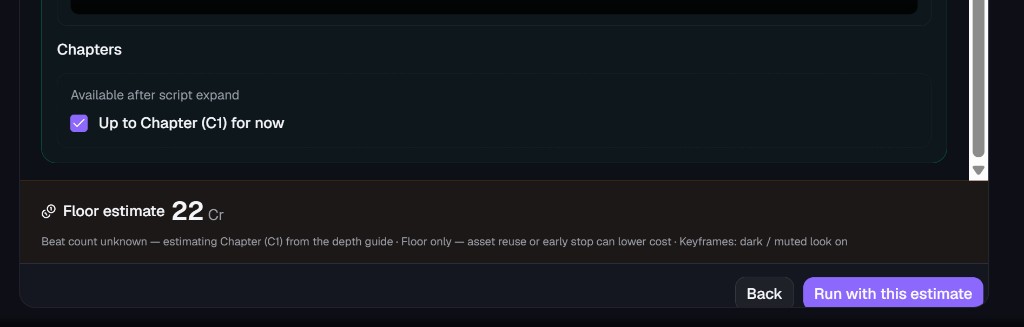
Before anything runs, you see a credit estimate. Credits are only spent after you approve — nothing is charged behind your back.
6Checkpoints: look, then continue
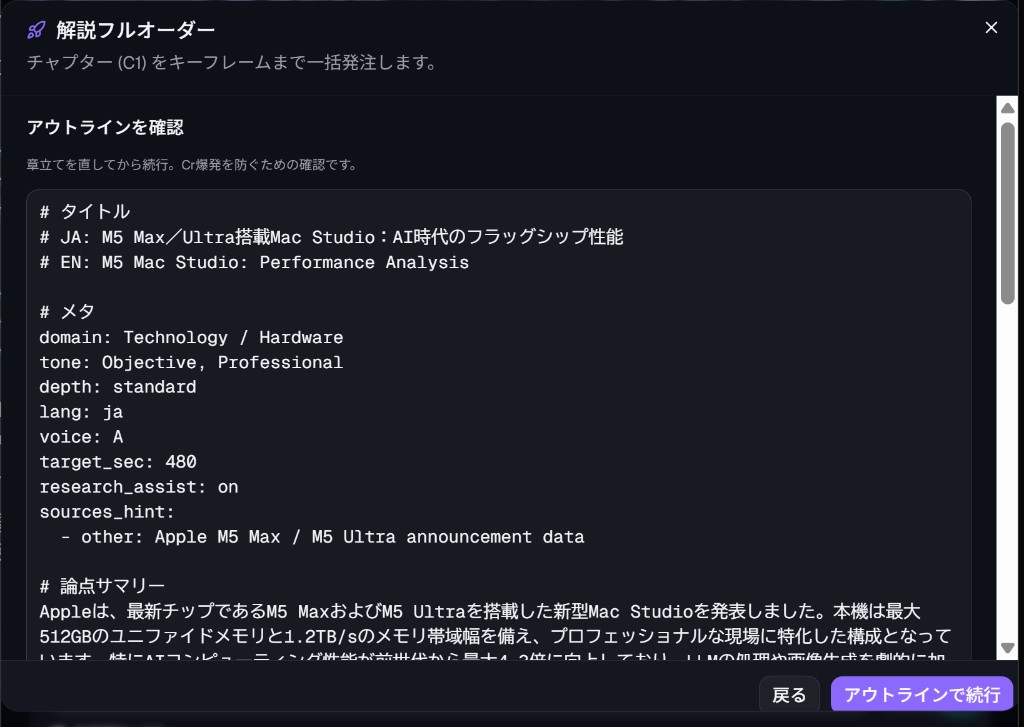
Production pauses inside the Full Order dialog. For an explainer that's the outline review and the keyframe review. Look it over and continue — or fix things right there before moving on.
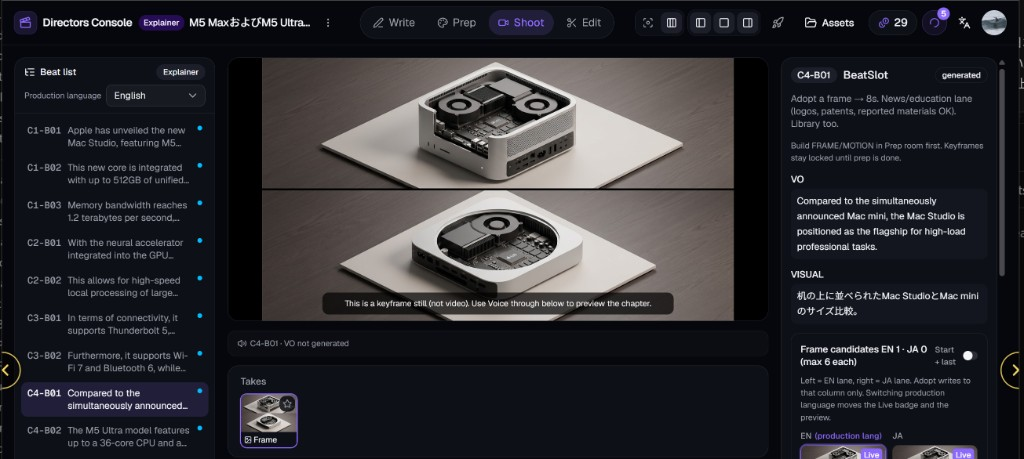
After keyframes land, check them in the Shoot room. The center preview is a still, not video. Press Voice throughto play the chapter's narration while the beat pictures change. If picture and voice match, you can move on to video generation.
Source material, outline, and research notes are also kept in the Write room (auto-saved separately from the manuscript) so you can revisit them later.
7When it looks right, continue to video
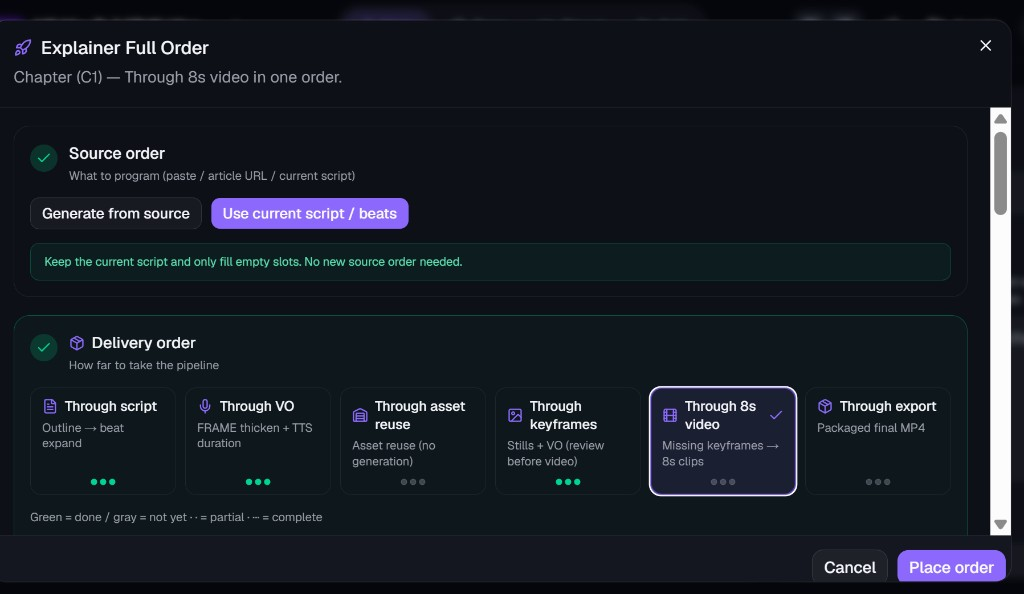
If picture and voice match, open Full Order again and set the stop point to "Through 8s video". You don't start over.
Choose Use current script / beats, and leave Don't overwrite filled slotson (it's on by default, under detail switches). Existing manuscript, voice, and stills stay; only the missing 8s clips are made. Turn it off only when you want a remake.
8Receive it
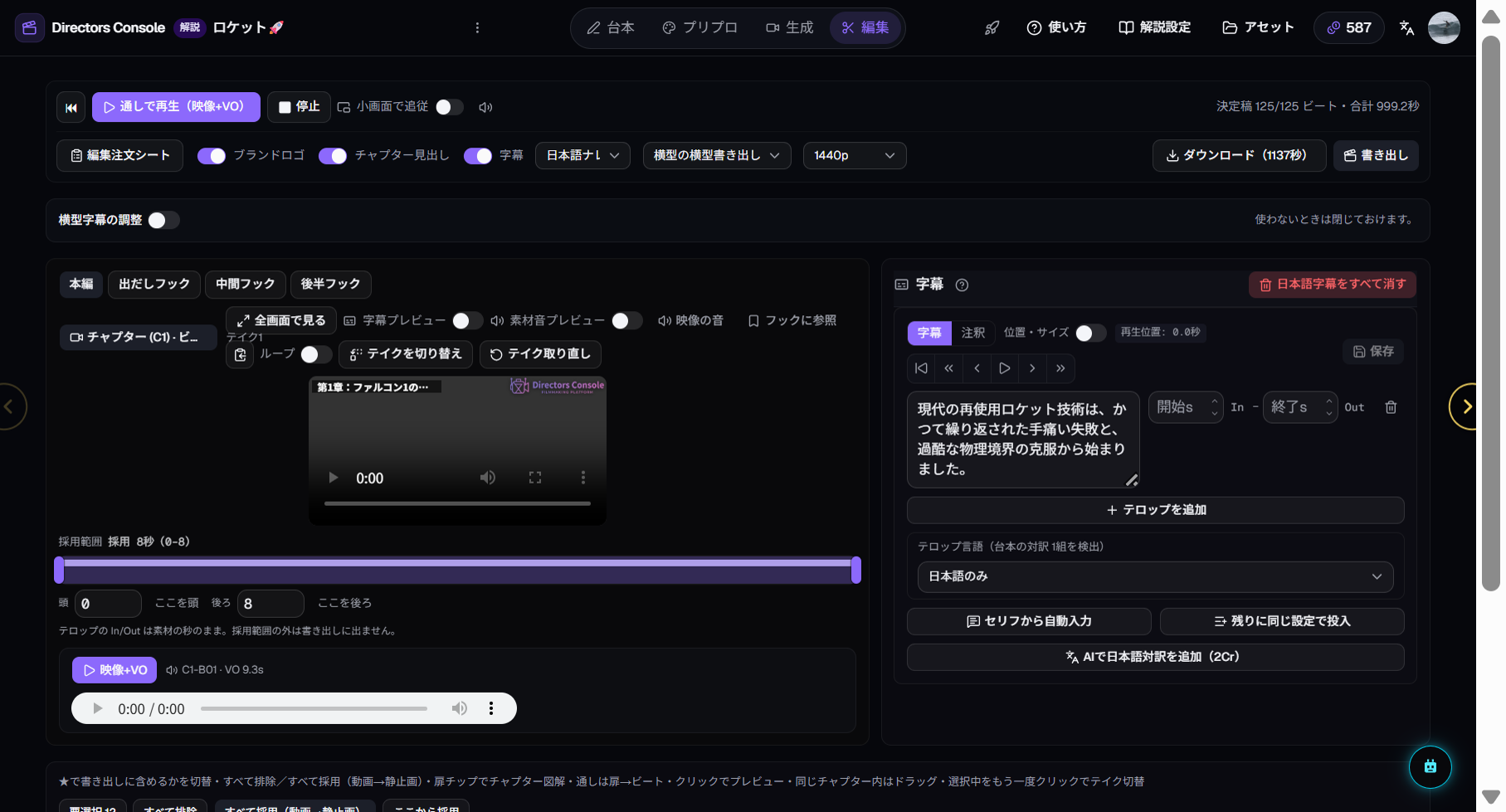
When it's done, preview in the Edit roomand export as a video file. That's your first video.
Where to go next
- Want to fix a specific cut or line? See the "refining" section of each guide.
- Making a movie or commercial? Same flow — only the order form changes.