Making a Commercial (Manual)
Full Order is 'submit and wait.' Manual production means you drive each room — Write → Prep → Shoot → Edit — at your own pace. This advanced guide is for people who want to curate the Visual Kit or hand-pick every key image.
0. How this differs from Full Order
| Full Order | Manual | |
|---|---|---|
| Workflow | Fill in the brief and submit. Everything runs automatically | You press each room's buttons yourself |
| Decision points | Runs straight to the stop point | Pauses at every step — pick key images one by one |
| Credits | Same cost for the same operations | Same cost for the same operations |
| Output | Identical | Identical (same rooms, same result) |
| Best for | First-timers, quick production | Curating the look, hand-picking key images |
The output is the same either way. You can also mix both approaches — run Full Order up to a point, then fix specific parts by hand (see §8).
1. Create a project
From the dashboard, click New project and choose the Commercial template. You start with four empty rooms: Write, Prep, Shoot, and Edit.
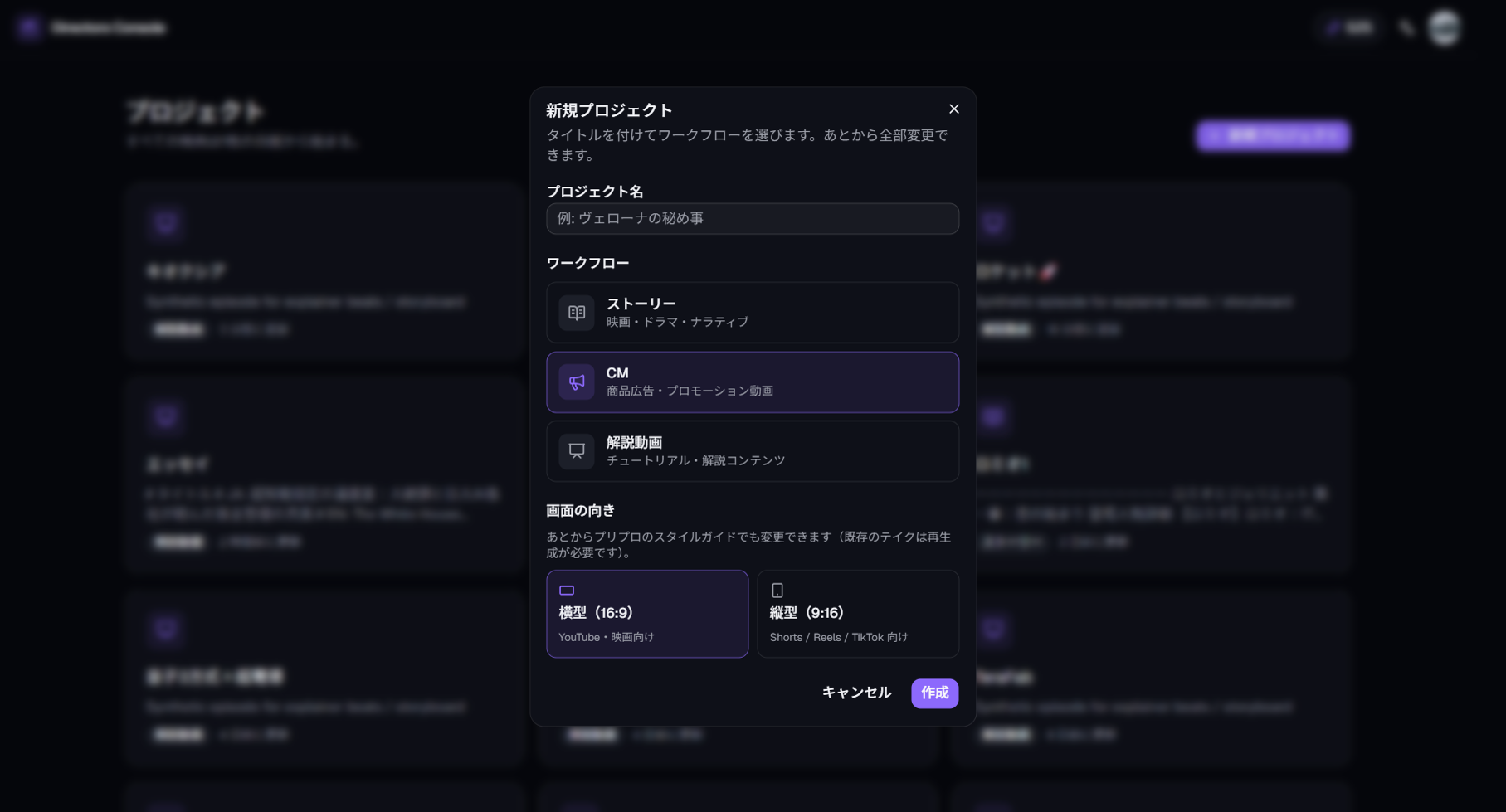
2. Write — Brief and script
A CM script starts with a brief (product information). You can also paste a product page URL and let the studio extract the key points.
2-1. Write the brief
In the right panel's Brief, enter the product name, selling points, and target audience — or paste a product page URL and the studio drafts the brief from it.
- Presentation style — Lifestyle (people using the product) or Spec (features shown as diagrams)
- Duration package — 15-second spot up to a 30-second story
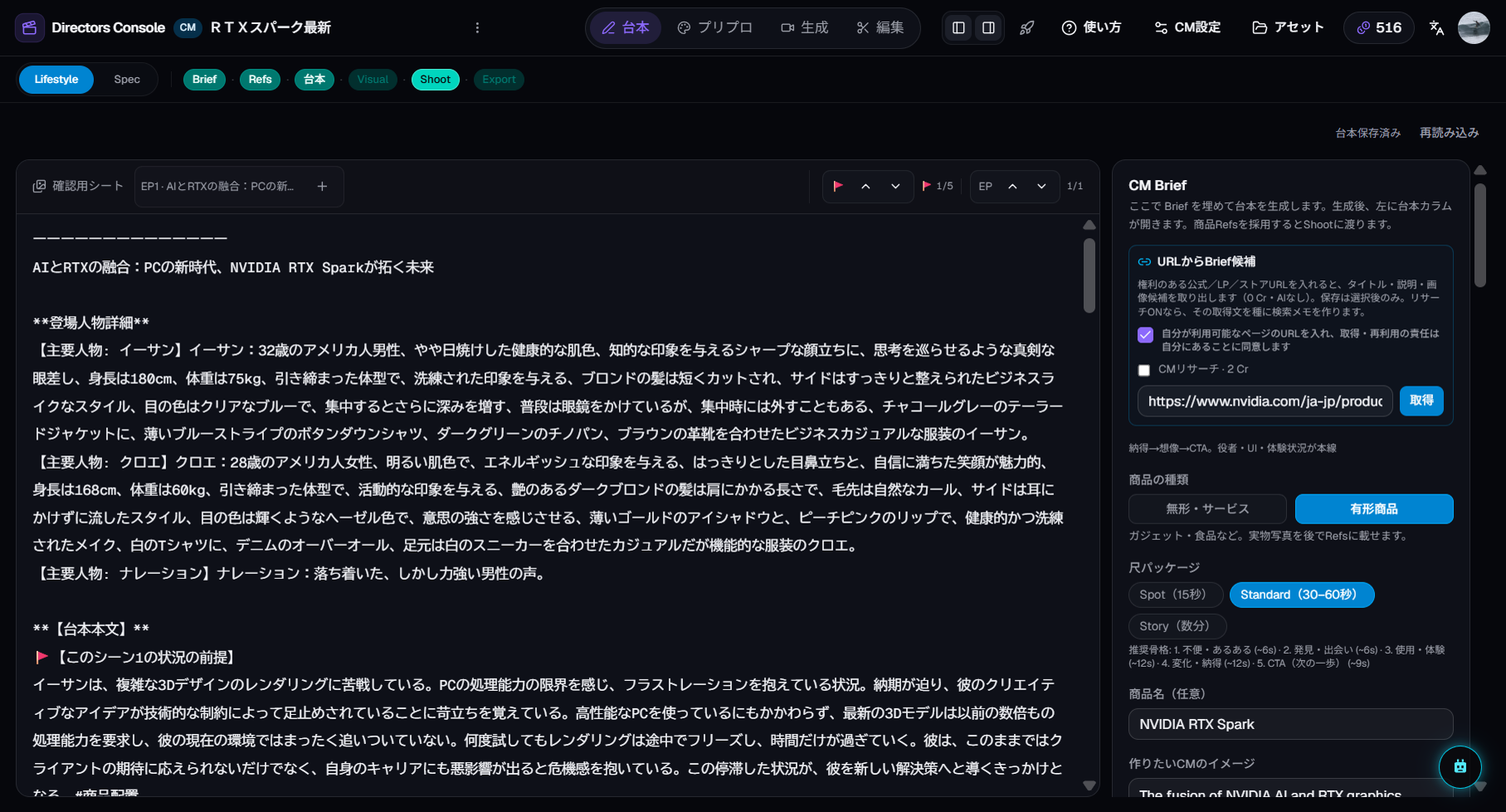
2-2. Generate the CM script
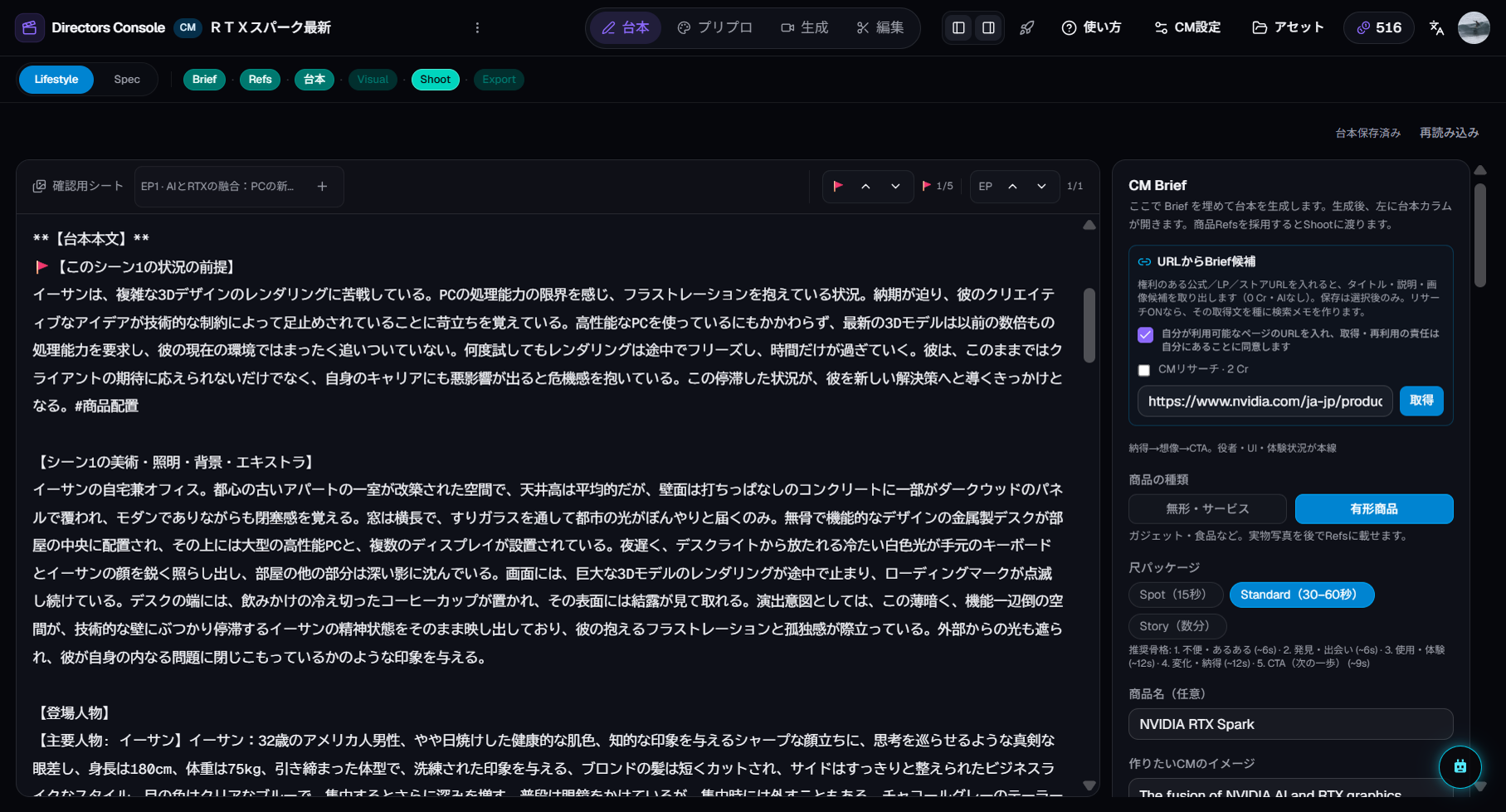
Press "Generate CM script". A script with per-cut visual directions and copy is created from the brief.
Decision point: The cut flow is decided at script time. Fix copy and scene order here to reduce rework later.
2-3. Review and edit
Edit the script directly in the left panel — copy, cut directions, everything.
3. Prep — Visual Kit and key images
CM's Prep room has a unique step: the Visual Kit. It locks color, texture, and tone before you generate cut-level key images.
3-1. Generate the Visual Kit
Press "Generate Visual Kit". A set of images representing the CM's overall color palette, texture, and tone is created from the brief and script. They are adopted into empty Refs automatically.
Decision point: The Visual Kit isthe commercial's world. If the tone is right here, key images and video will feel cohesive. Regenerate as many times as you like.
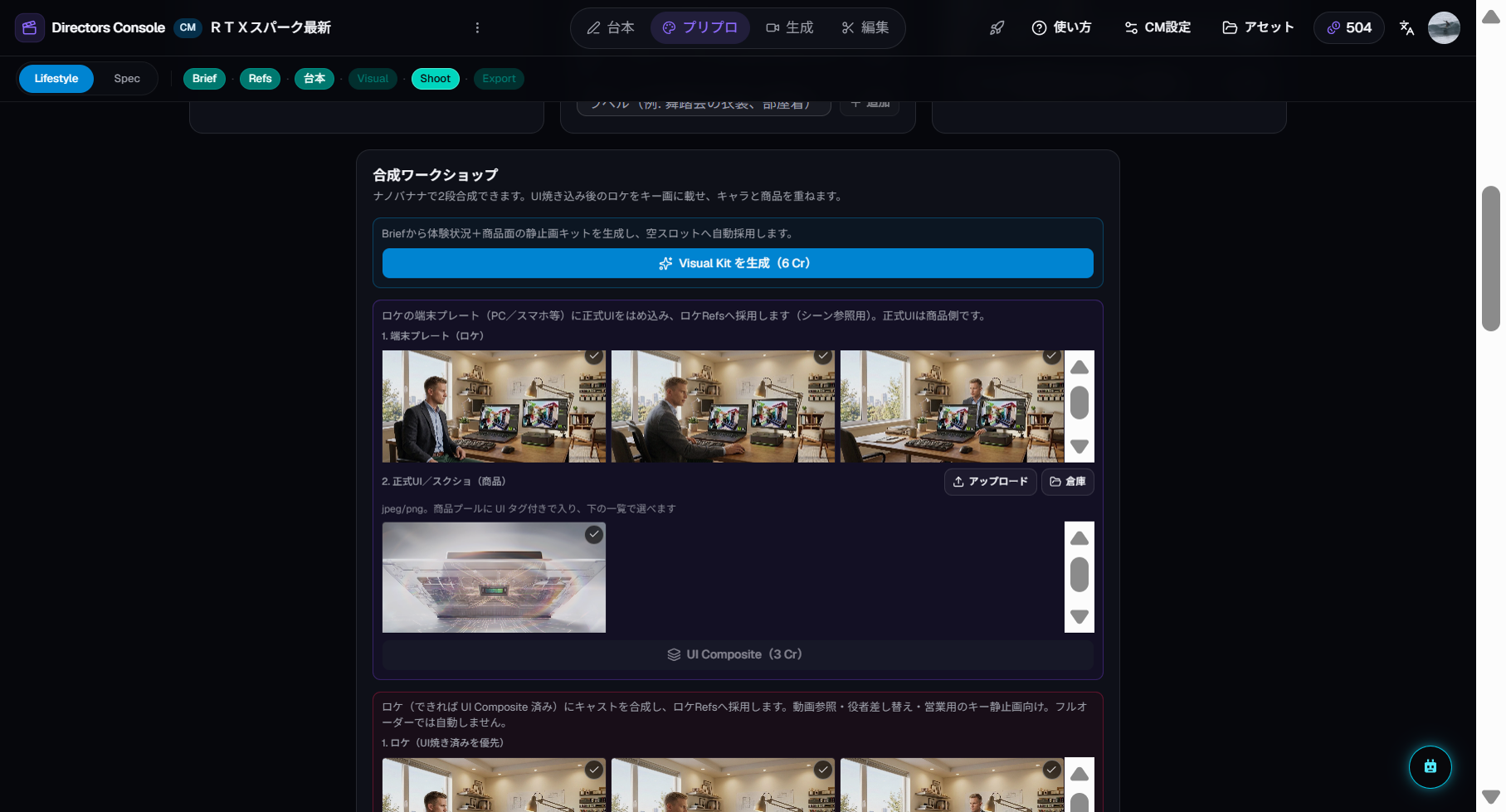
3-2. Create key image candidates
With the Visual Kit set, generate key image candidates for each cut. Multiple candidates appear per cut — adopt the best one.
Decision point:The adopted key image becomes the video's opening frame. Scrutinize composition, color, and product visibility. You can generate more candidates if none fit.
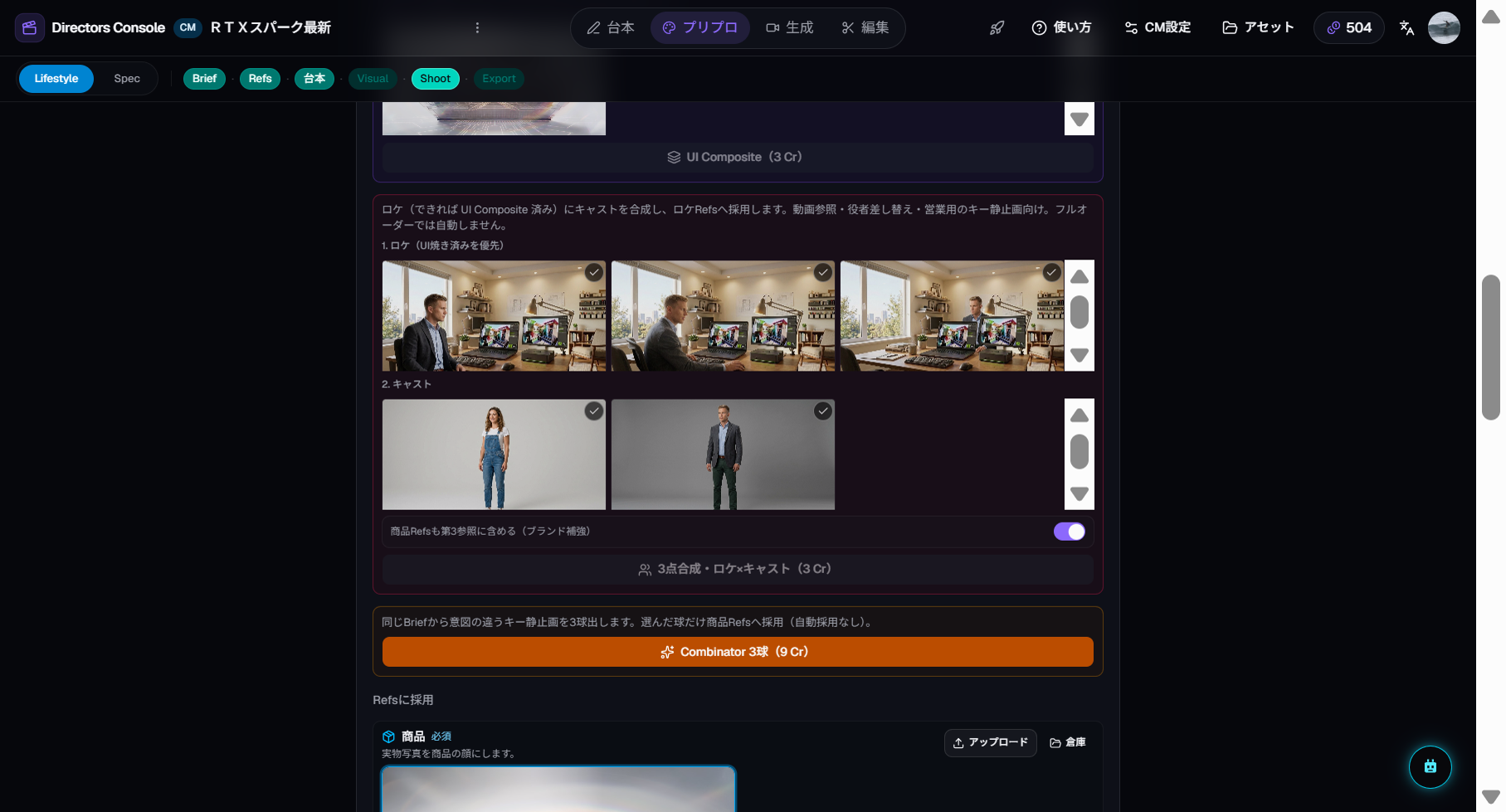
3-3. Compositing (optional)
Optionally, use UI Composite to place app screenshots on device frames, or Hero Composite for character + product blending. Not required for every CM.
4. Shoot — Generate cut videos
The Shoot room turns adopted key images into cut videos.
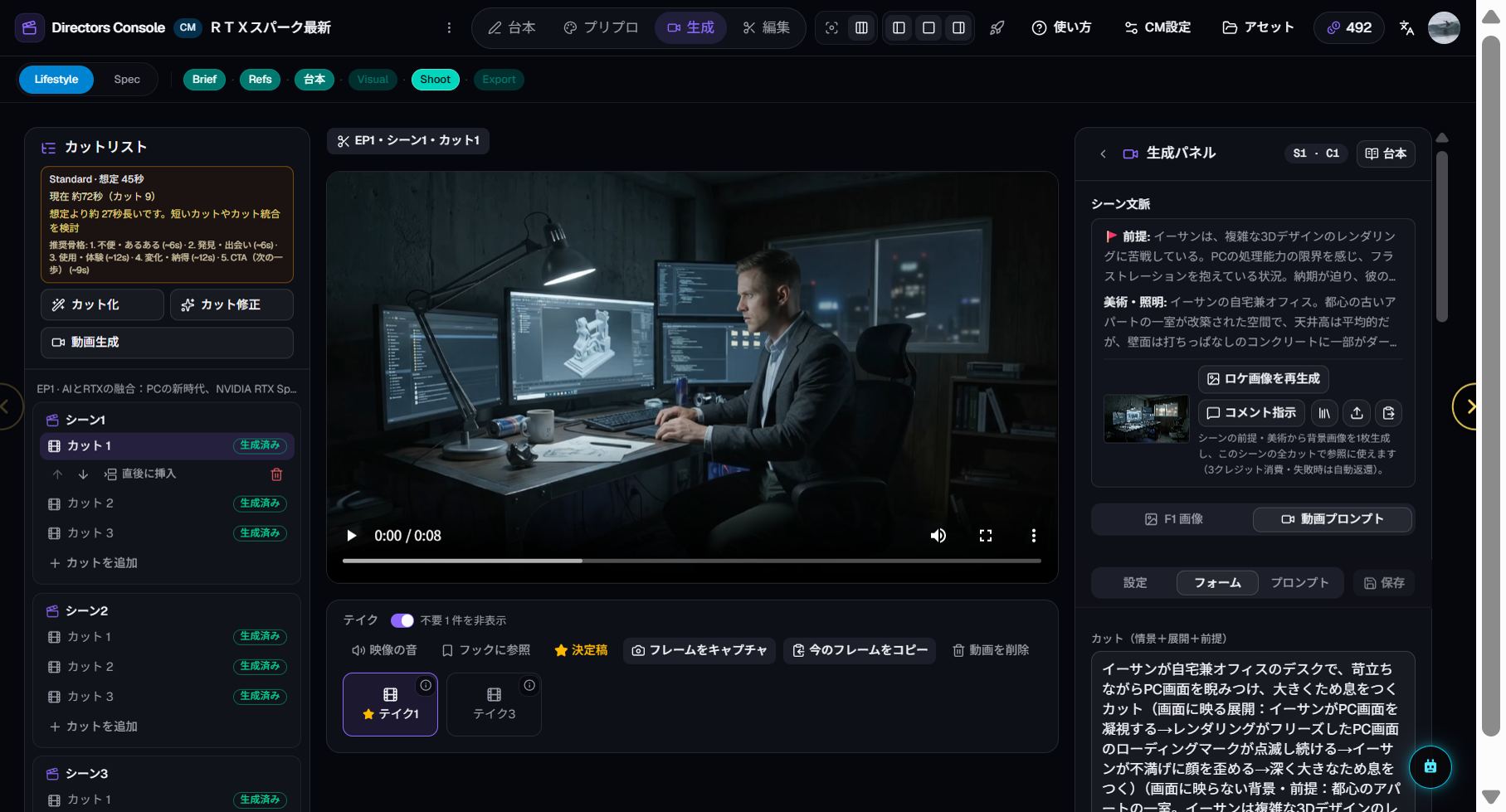
4-1. Generate cut videos
Press "Generate video" for each cut. The key image becomes the opening frame. Batch-generate a whole scene or go one cut at a time.
Decision point: Video generation is the most credit-intensive step. If the key image looked right, the video usually does too. Fix the key image in Prep first if it was off.
4-2. Review and adopt takes
Shooting the same cut multiple times produces takes. Pick the best one and adopt it — only the adopted take lands on the Edit timeline.
5. Edit — Timeline and subtitles
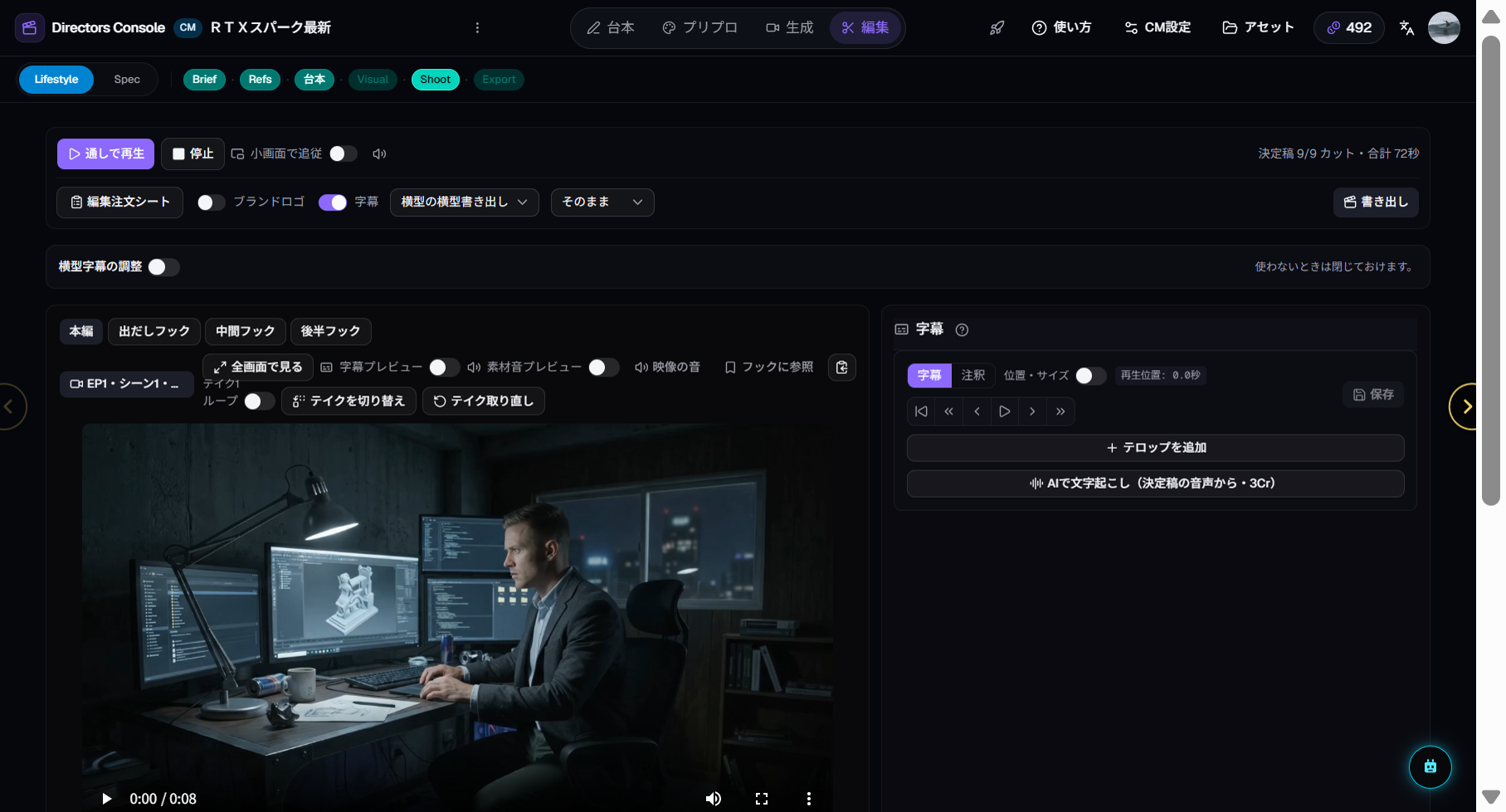
The Edit room assembles adopted takes into a timeline and adds finishing touches.
5-1. Review the timeline
Adopted takes appear in cut order. Commercials are short, so cut transitions and rhythm matter most.
5-2. Add subtitles
Choose from none / Japanese / English / both. For commercials, the copy becomes the subtitle text.
5-3. Adjust the audio mix
Balance source video audio and narration. Narrated CMs push narration up; visual-first CMs keep source audio only.
5-4. Export
Press "Export" and choose a resolution (original / 1080p / 1440p).
6. Credit costs
Manual and Full Order consume exactly the same credits for the same operations.
| Operation | Approx. |
|---|---|
| CM script generation | 1 Cr |
| Visual Kit | 1 Cr+ |
| Key image candidates (per cut) | 1 Cr |
| UI / Hero Composite | 1 Cr |
| Structure breakdown | 1 Cr |
| Cut video (per cut) | 3 Cr |
| Export | 1 Cr+ |
Every operation shows an approval dialog with an estimate before spending, so there are no surprises.
7. Commercial use
If you feature real products, logos, or trademarks, confirming the rights to use them is your responsibility. See the Terms of Service for output rights in detail.
8. Mixing with Full Order
Manual production doesn't mean you must do everything by hand. These hybrid workflows are practical:
- Full Order to key images → swap out weak images in Prep → generate video in Shoot
- Write the script and Visual Kit manually → hand off key images and beyond to Full Order
- Full Order everything → reshoot specific cuts in Shoot → tweak subtitles in Edit
Full-Ordered work can be overwritten manually, and manually created work can be continued by Full Order. Room state is shared, so consistency is guaranteed regardless of which entry point you use.