Making a Movie (Manual)
Full Order is 'submit and wait.' Manual production means you drive each room — Write → Prep → Shoot → Edit — at your own pace. This advanced guide is for people who want to polish every line of script or reshoot cuts one by one.
0. How this differs from Full Order
| Full Order | Manual | |
|---|---|---|
| Workflow | Fill in the order form and submit. Everything runs automatically | You press each room's buttons yourself |
| Decision points | Runs straight to the stop point | Pauses at every step — review at your own pace |
| Credits | Same cost for the same operations | Same cost for the same operations |
| Output | Identical | Identical (same rooms, same result) |
| Best for | First-timers, quick production | Step-by-step review, targeted rework |
The output is the same either way. You can also mix both approaches — run Full Order up to a point, then fix specific parts by hand (see §7).
1. Create a project
From the dashboard, click New project and choose the Movie template. You start with four empty rooms: Write, Prep, Shoot, and Edit. In manual production you fill them from left to right.
Screenshot coming soon
docs-manual-movie-01-create-project.en.png
2. Write — Build the script
A movie script can be generated from a story order or written from scratch. Manual production lets you read, revise, and lock the script before anything else happens.
2-1. Fill in the story order
In the right panel's Story order, enter genre, mood, and premise. This becomes the brief for the AI screenwriter. The more detail you add, the closer the output will be to your vision.
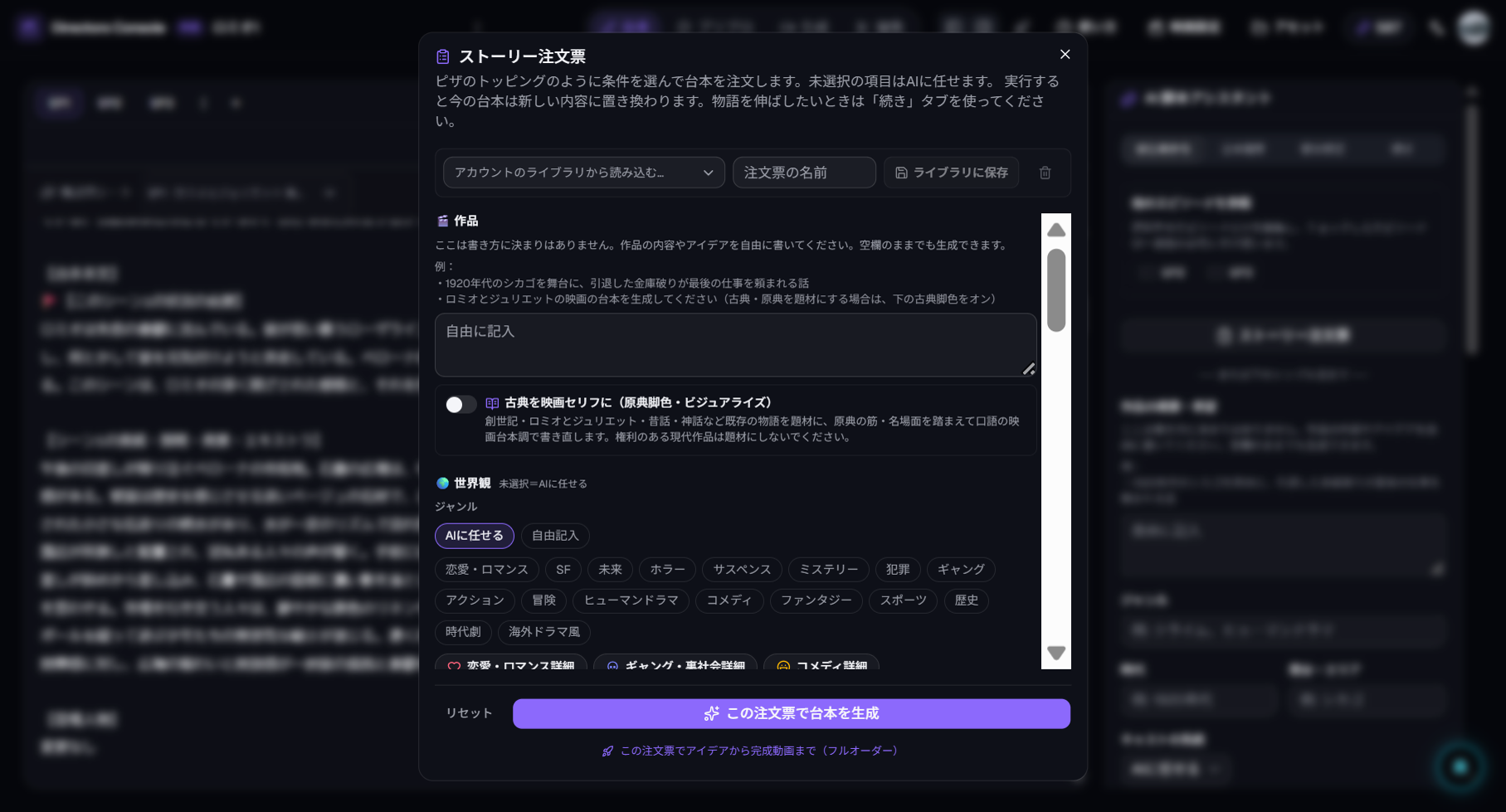
2-2. Generate the script
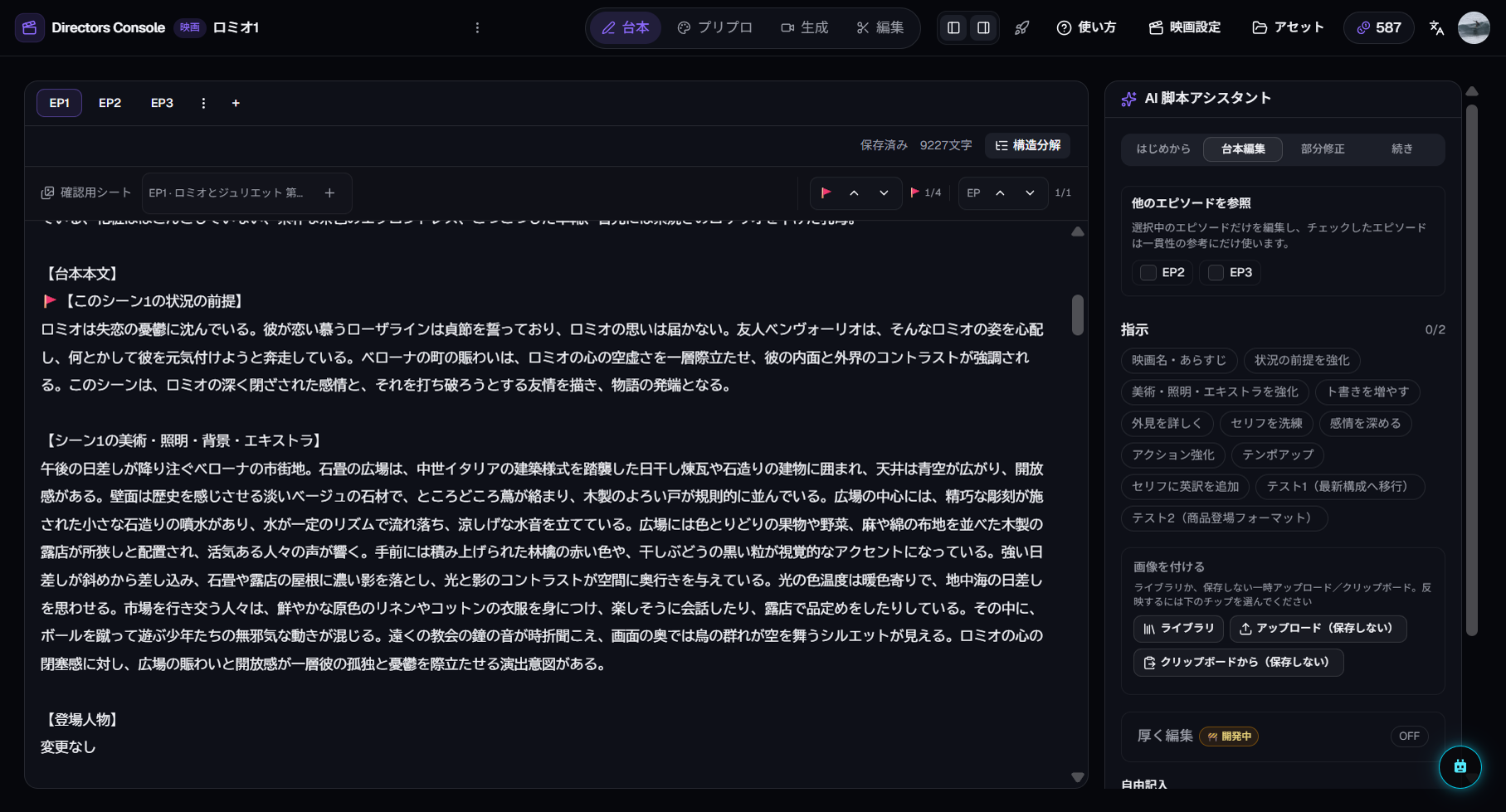
Press "Generate script". An episode (EP1) script appears, divided into scenes by fence lines. Each scene contains directions for individual cuts.
Decision point: You can always edit the script later, but casting and storyboards are built from it. Locking the broad strokes here reduces rework downstream.
2-3. Review and edit
Edit the script directly in the left panel — dialogue, scene mood, cut directions, everything. Film is script-first, so time spent here pays off later.
3. Prep — Style, casting, storyboards
The Prep room determines the film's visual identity. Work through style → casting → storyboards in order.
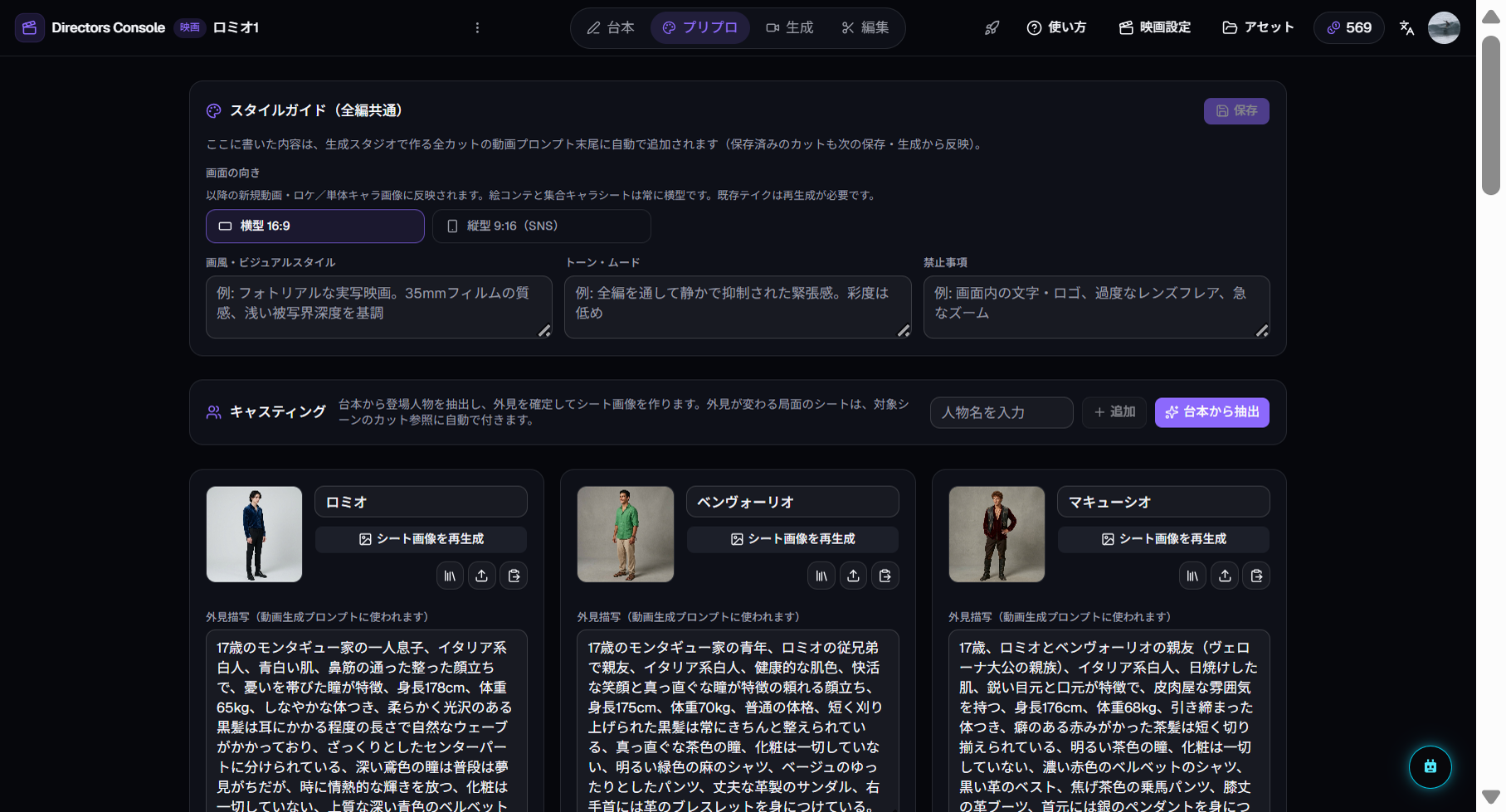
3-1. Set the style guide
In the Prep settings panel, choose an art style and aspect ratio (16:9 landscape / 9:16 portrait). The style guide sets the visual tone for the entire film. Changing it later is possible but requires reshooting existing takes.
3-2. Run casting (character sheets)
Press "Casting" to extract characters from the script and generate reference sheets for each. Character sheets help maintain visual consistency across cuts.
Decision point:If a character doesn't look right, regenerate the sheet here. Fixing a character after storyboards or video means redoing every cut they appear in.
3-3. Generate storyboards
Press "Storyboard" to create a composition reference image for each cut in the scene. Boards are built from the script directions plus character sheets.
Decision point: Storyboard frames become the opening frame of each video clip. If the composition is right here, the video will follow. Regenerate individual cuts as needed.
Screenshot coming soon
docs-manual-movie-05-prep-boards.en.png
4. Shoot — Generate cut videos
The Shoot room turns storyboard frames into cut videos.
4-1. Structure breakdown
If the script hasn't been broken into scenes → cuts yet, run "Structure breakdown" first. If you came through Full Order or storyboard generation, this is already done.
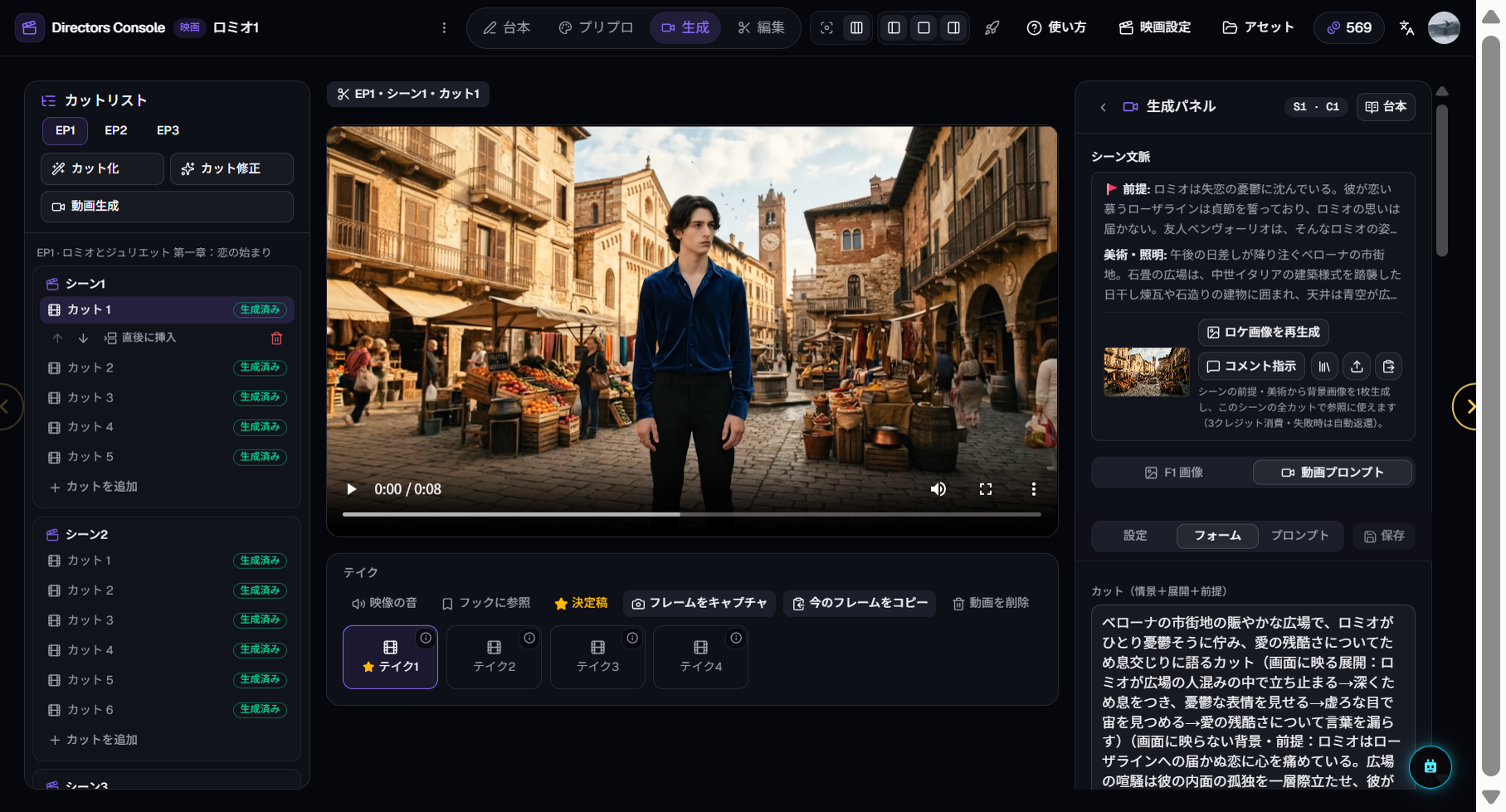
4-2. Generate cut videos
Press "Generate video" for each cut. The storyboard frame becomes the opening frame. You can batch-generate an entire scene or go one cut at a time.
Decision point: Video generation is the most credit-intensive step. If the storyboard looked right, the video usually does too. Fix the board in Prep first if it was off.
4-3. Review and adopt takes
Shooting the same cut multiple times produces takes. Pick the best one and adopt it — only the adopted take lands on the Edit timeline. Reshoot as many times as you like.
5. Edit — Timeline and subtitles
The Edit room assembles adopted takes into a timeline and adds finishing touches.
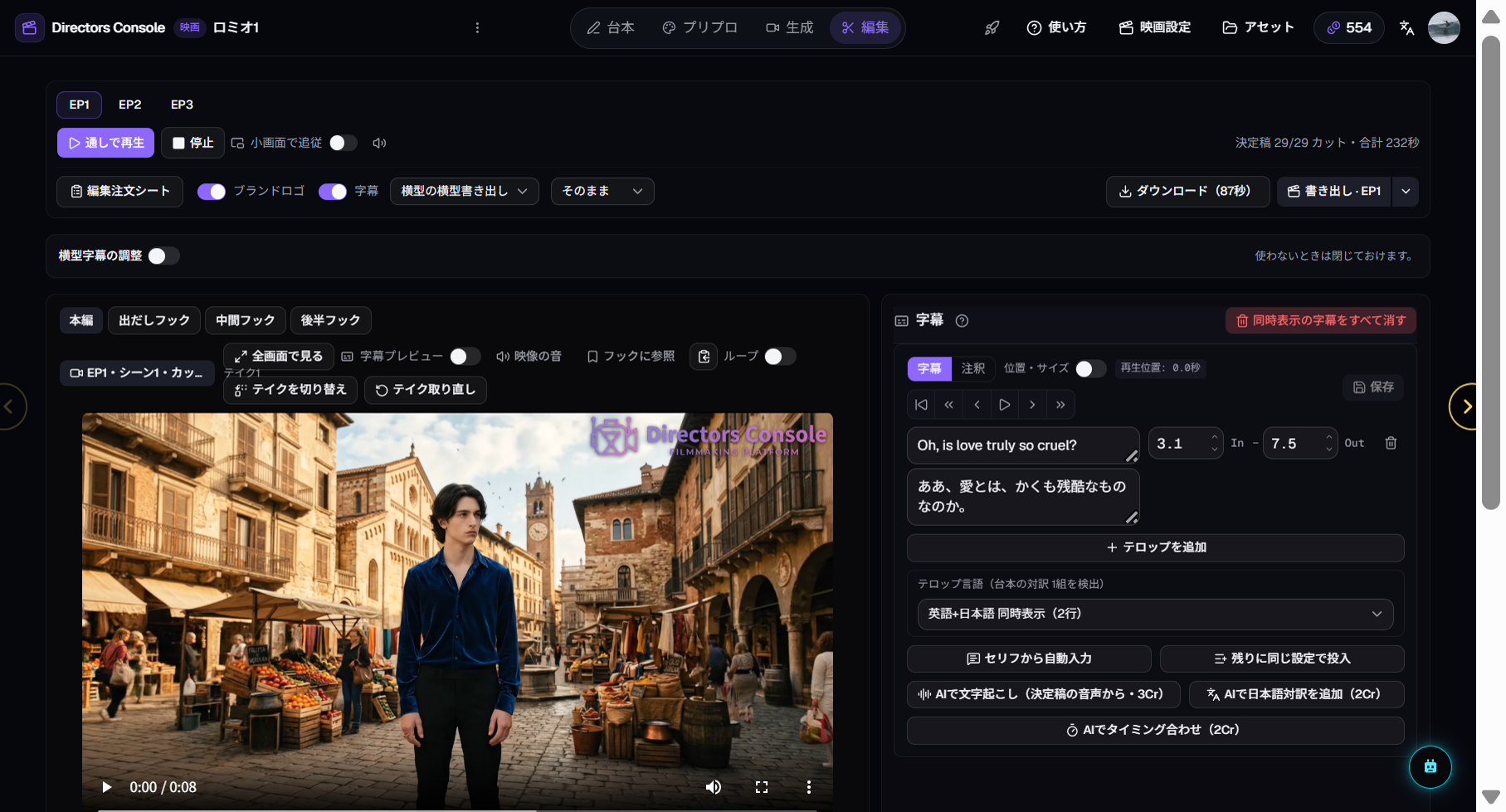
5-1. Review the timeline
Adopted takes appear in cut order. Use the preview to watch the full film. In movies, dialogue is baked into the video, so check the picture–sound unity here.
5-2. Add subtitles
Choose from none / Japanese / English / both. Subtitles are generated automatically from the script dialogue.
5-3. Adjust the audio mix
In movies, source video audio is the star — it carries the dialogue. Main narration is typically unused. Adjust volume and clip-edge fades as needed.
5-4. Export
Press "Export" and choose a resolution (original / 1080p / 1440p).
6. Credit costs
Manual and Full Order consume exactly the same credits for the same operations. The only difference is whether you see one lump estimate or approve each operation individually.
| Operation | Approx. |
|---|---|
| Script generation | 1 Cr |
| Casting (character sheets) | 1 Cr+ |
| Storyboard (per cut) | 1 Cr |
| Structure breakdown | 1 Cr |
| Cut video (per cut) | 3 Cr |
| Export | 1 Cr+ |
Exact costs vary by cut count and model choice. Every operation shows an approval dialog with an estimate before spending, so there are no surprises.
7. Mixing with Full Order
Manual production doesn't mean you must do everything by hand. These hybrid workflows are practical:
- Full Order to storyboards → swap out weak cuts in Prep → generate video in Shoot
- Write the script manually → hand off casting and beyond to Full Order
- Full Order everything → reshoot specific cuts in Shoot → tweak subtitles in Edit
Full-Ordered work can be overwritten manually, and manually created work can be continued by Full Order. Room state is shared, so consistency is guaranteed regardless of which entry point you use.