Making an Explainer
Paste an article URL or text and receive a narrated explainer program. The headline feature: you review stills + voice before committing credits to video.
1. What you get
A video that turns outside articles or material into a program. One program is an episode, divided into chapters (C1, C2… — C for Chapter), and each moment within a chapter is a beat (like C1-B01). Every beat gets narration and a visual.
2. Ordering with Full Order
The order form needs just three things:
- Source — pasted text or an article URL
- Depth — Brief (~1 min) / Standard (~2 min) / Deep (~5 min)
- Recommended set — how far to take it
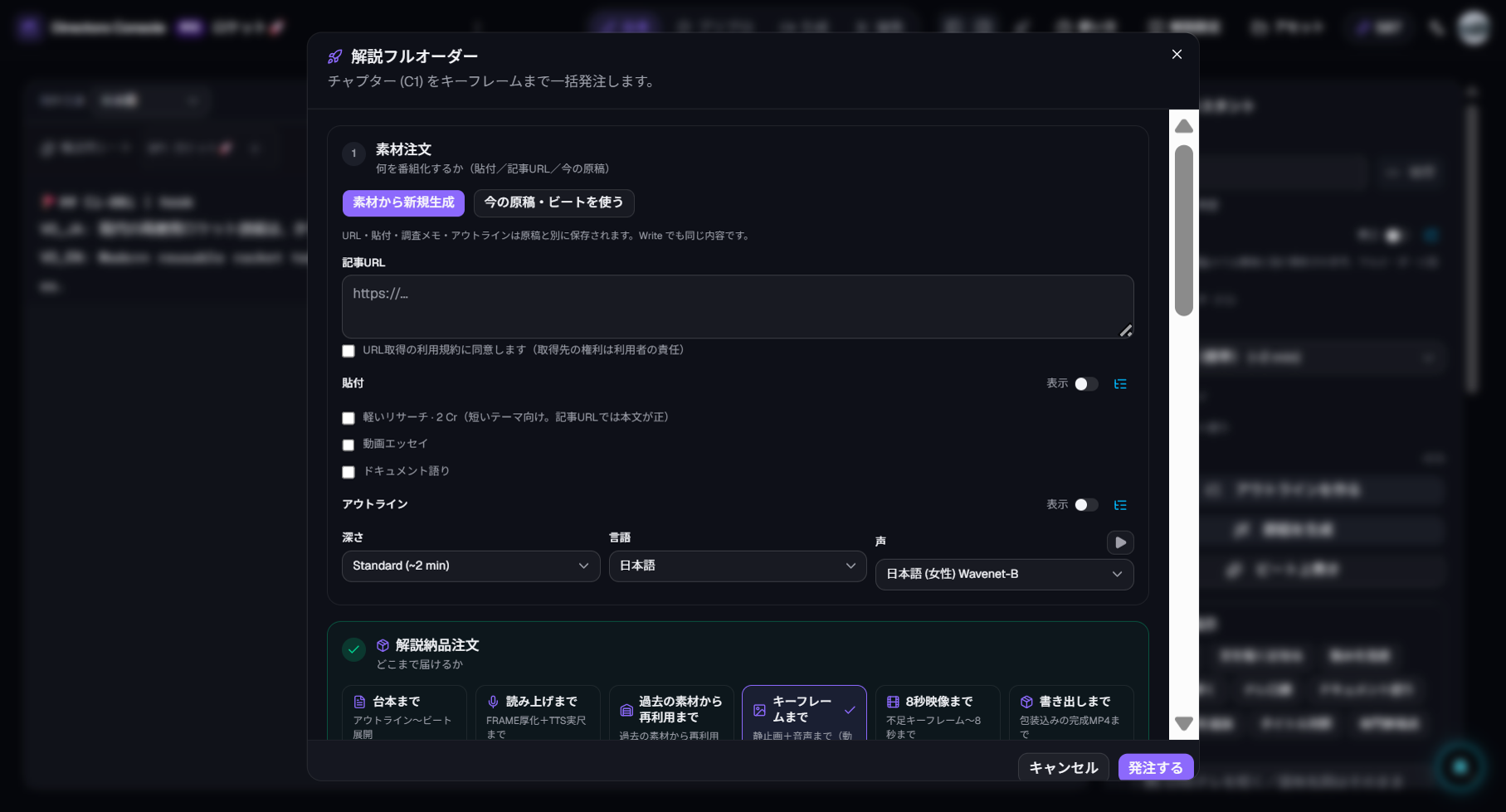
| Stop point | What you receive |
|---|---|
| Script | A manuscript divided into beats (beat manuscript) |
| Voice | Narration audio for each beat |
| Keyframes (default, recommended) | Stills + voice per beat — ideal for review before video |
| Videos | A short video per beat |
| Export | Assembled program as a video file |
The default is "up to keyframes": confirm the program's skeleton with stills and voice, then spend on video only for what you've approved. It's the most credit-efficient way to work.
3. Where it pauses
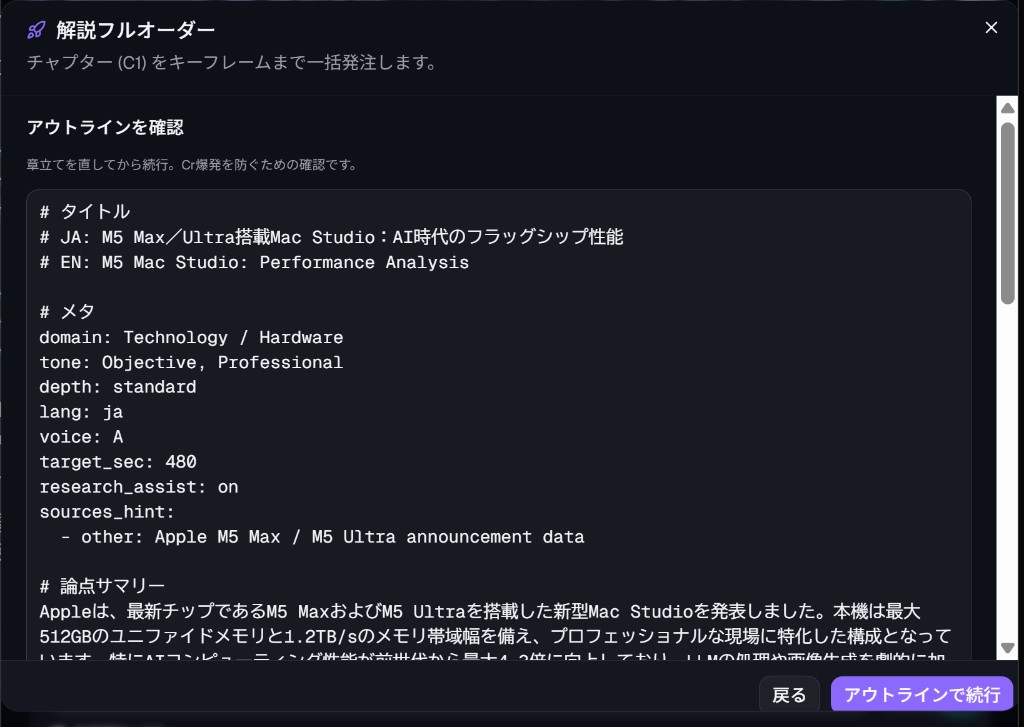
Worried it will run away and burn credits? It can't — production always pauses at two points:
- Outline review — check the chapter structure before writing begins in earnest
- Keyframe review — approve stills and voice before video generation starts
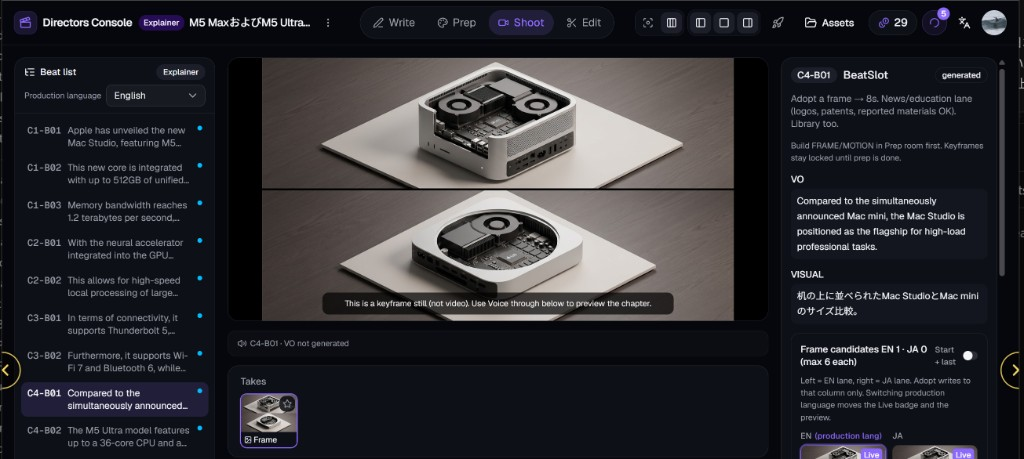
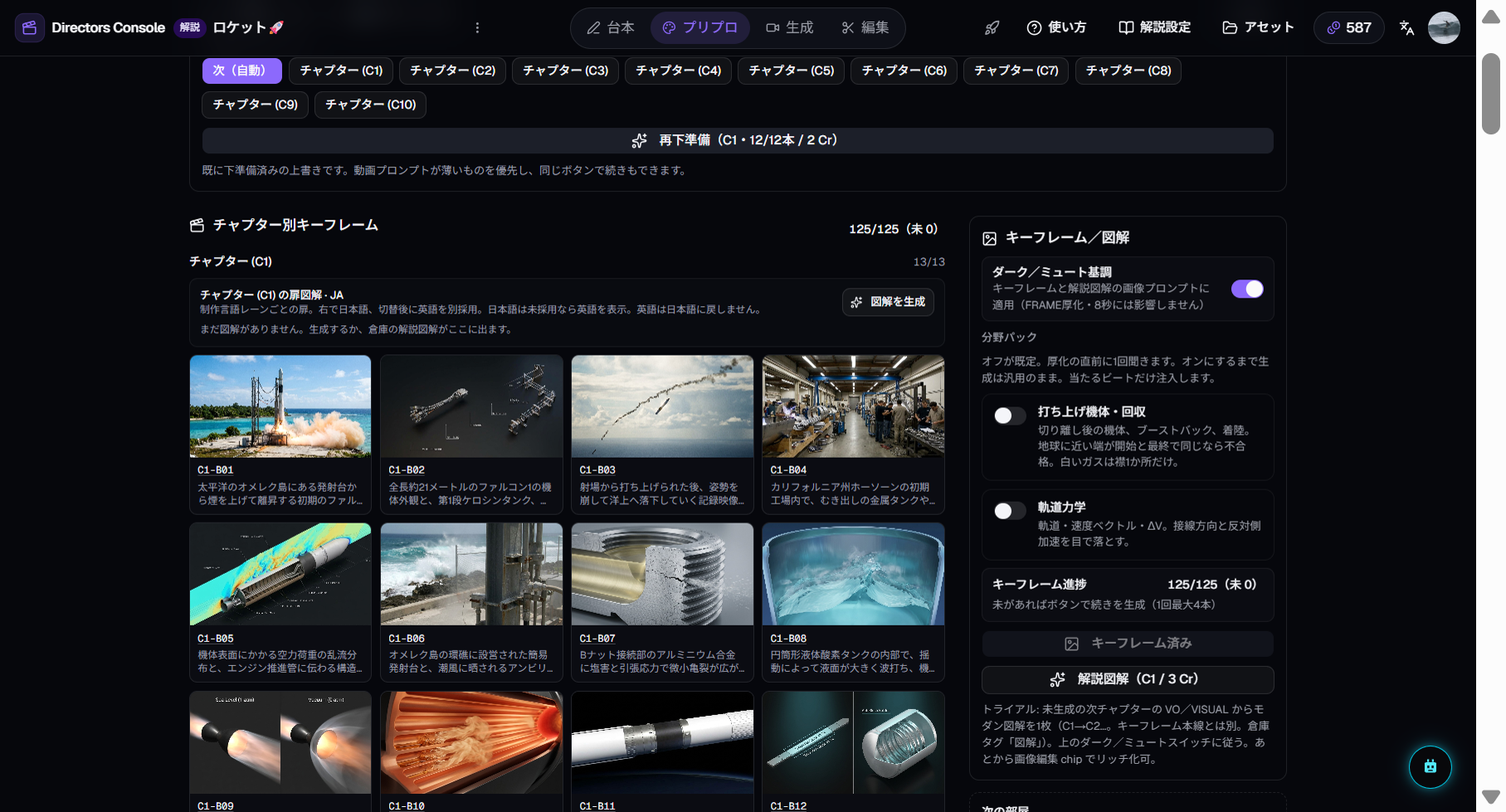
After keyframes land, check them in the Shoot room. The center preview is still not video. Press Voice throughunder the still — narration plays in beat order while the chapter's pictures change. If picture and voice match, you can move on to video. If they don't, fix that beat's frame or wording first.
4. When it looks right, continue to video
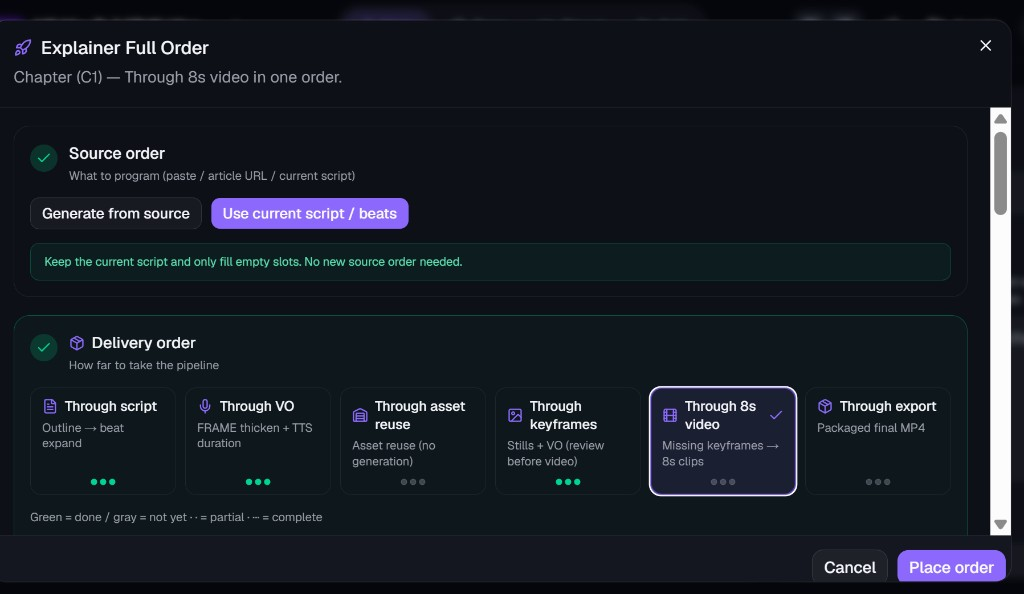
If picture and voice match, open Full Order again and set the stop point to "Through 8s video". You don't start over.
Choose Use current script / beats, and leave Don't overwrite filled slotson (it's on by default, under detail switches). Existing manuscript, voice, and stills stay; only the missing 8s clips are made. Turn it off only when you want a remake.
5. Reading the results
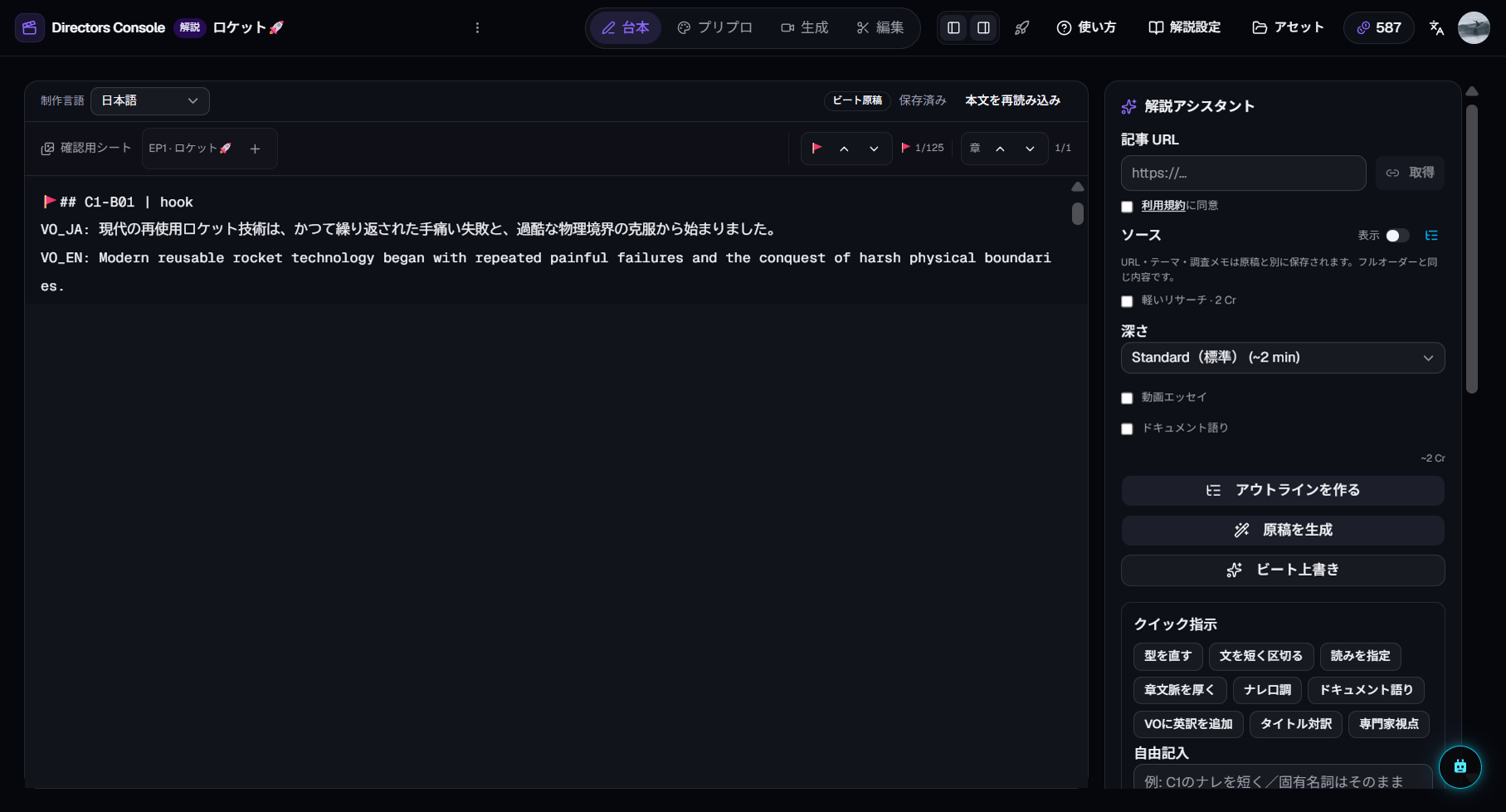
- Beat manuscript — the Write room manuscript is divided by headings like
🚩## C1-B01, narration included - Chapter by chapter — generation starts with Chapter (C1); order C2 onward once C1 looks right
- Keyframe board — stills per beat, lined up in the Prep room
6. Refining (the manual entry points)
- Fix one beat's wording — edit that beat in the manuscript and regenerate its voice
- Redo one beat's visual — regenerate the keyframe, or reshoot just the video
- Order the next chapter (C2) — widen the range in Full Order
7. Subtitles
Subtitles are a topping: none, Japanese, English, or both. They flow in automatically from the narration — no transcribing.