Making an Explainer (Manual)
Full Order is 'submit and wait.' Manual production means you drive each room — Write → Prep → Shoot → Edit — at your own pace. This advanced guide is for people who want to review every step or reshape specific parts as they go.
0. How this differs from Full Order
| Full Order | Manual | |
|---|---|---|
| Workflow | Fill in the order form and submit. Everything runs automatically | You press each room's buttons yourself |
| Decision points | Pauses at review gates (outline, keyframes) | Pauses at every step — review at your own pace |
| Credits | Same cost for the same operations | Same cost for the same operations |
| Output | Identical | Identical (same rooms, same result) |
| Best for | First-timers, quick production | Step-by-step review, targeted rework |
The output is the same either way. You can also mix both approaches — run Full Order up to a point, then fix specific parts by hand (see §7).
1. Create a project
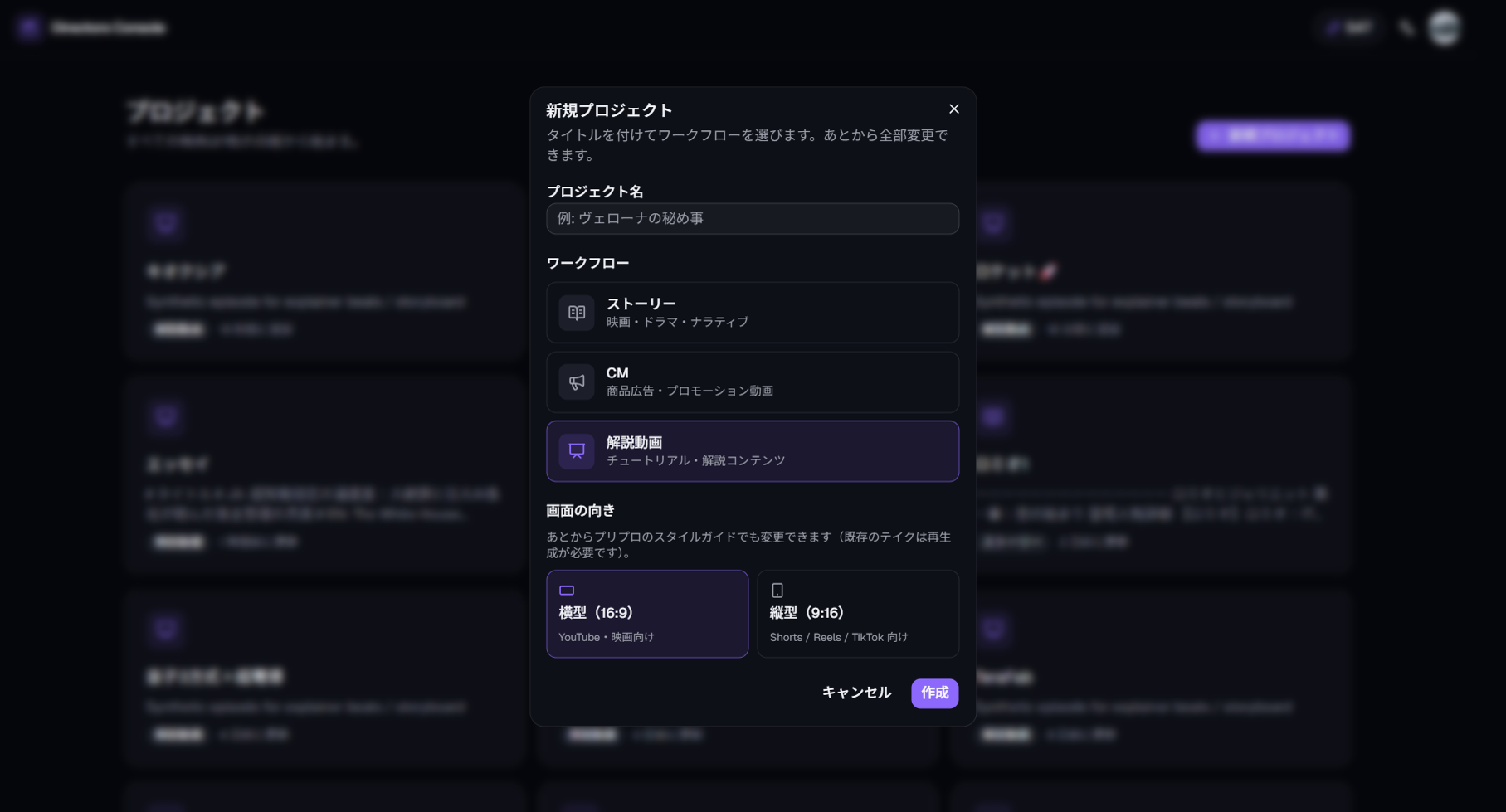
From the dashboard, click New project and choose the Explainer template. You start with four empty rooms: Write, Prep, Shoot, and Edit. In manual production you fill them from left to right.
2. Write — Build the script
An explainer script is assembled in three stages: source text → outline → paragraph manuscript → beat expansion. Manual production lets you review and edit at each stage.
2-1. Add source material
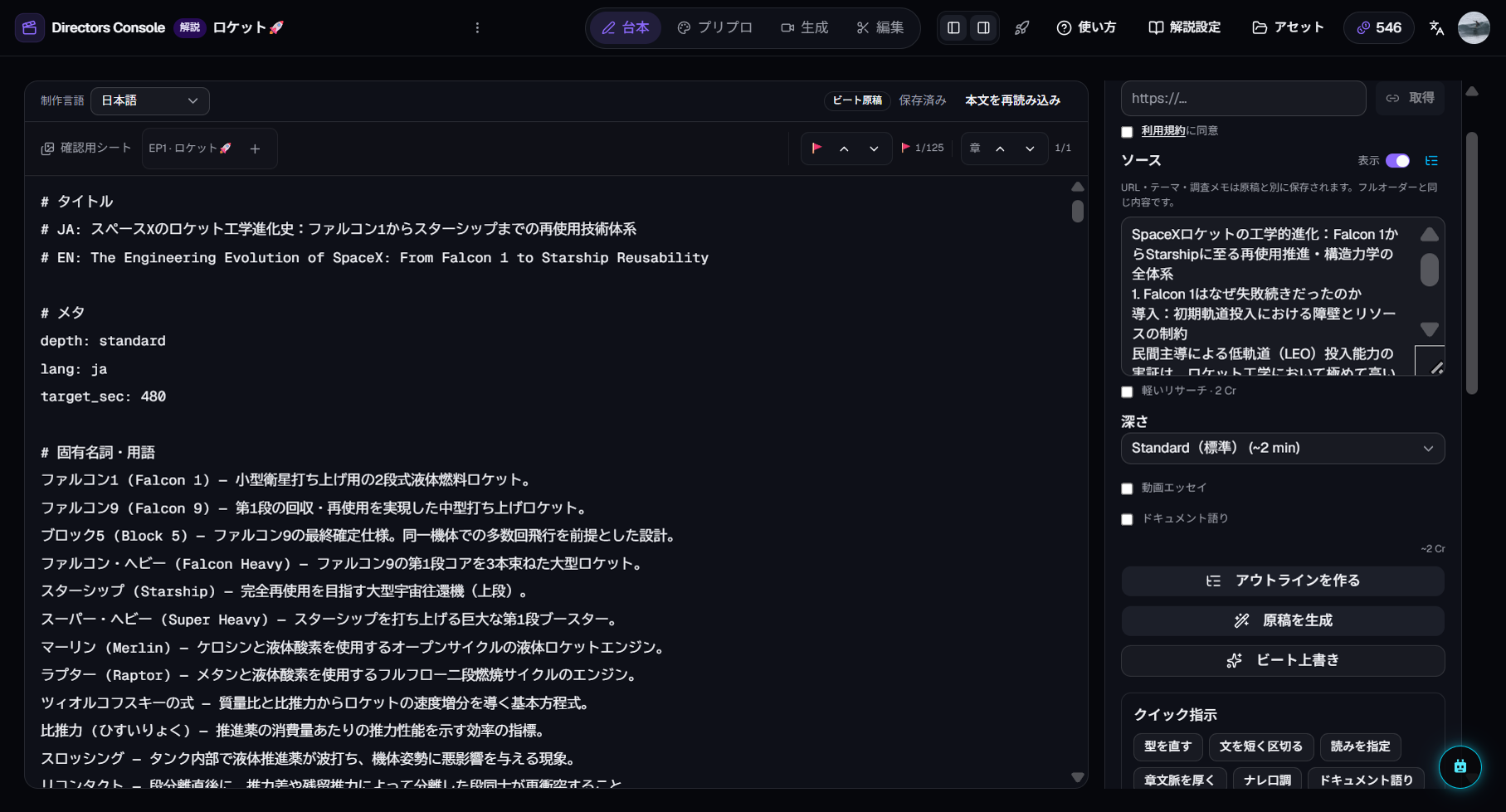
In the left panel's Source area, paste text or enter an article URL. Choose a depth (Brief / Standard / Deep) — this controls how many chapters the program will have.
2-2. Generate the outline
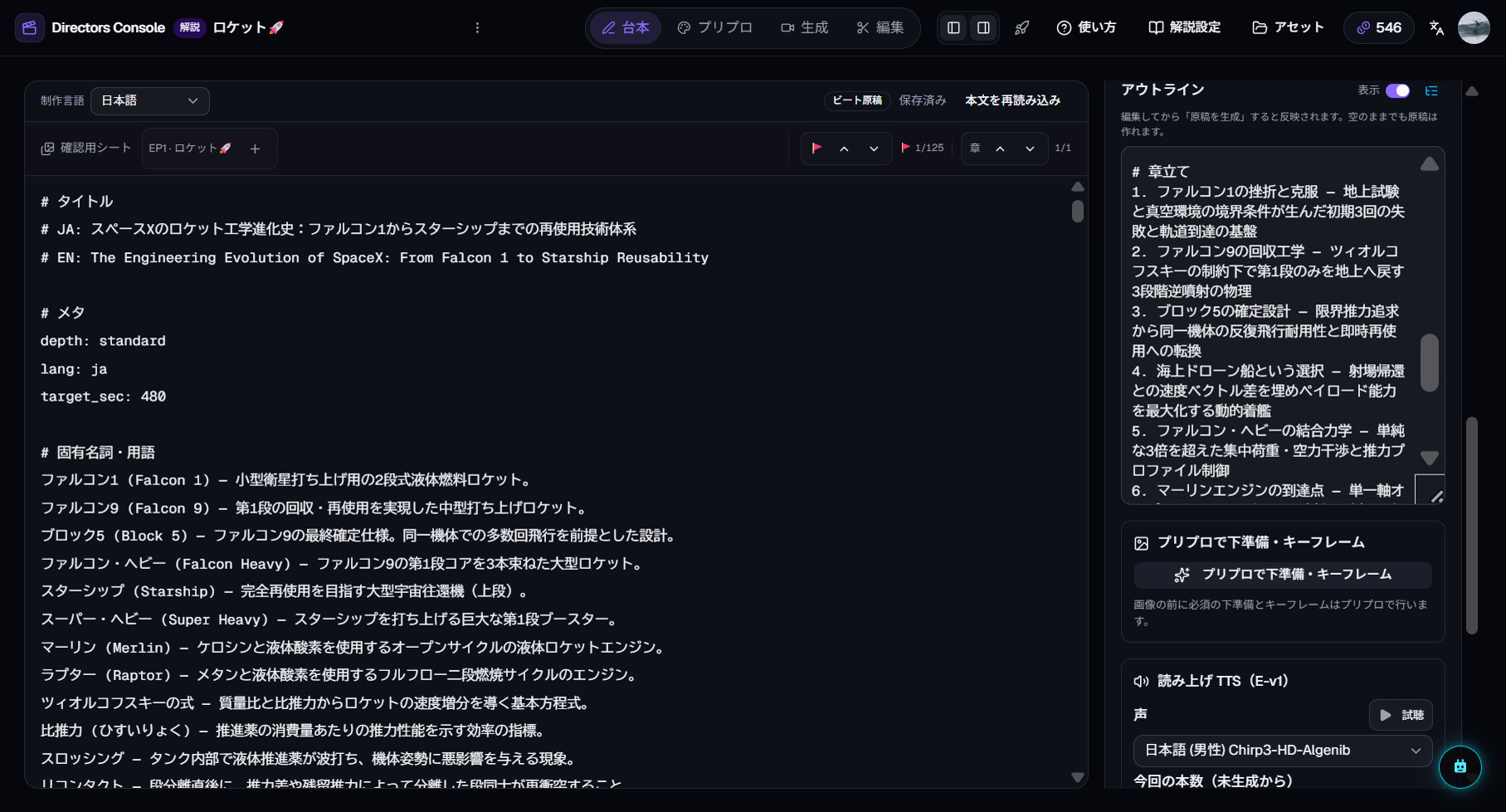
Press "Generate outline". The system creates a chapter structure with key-point summaries. You can reorder chapters, drop unnecessary ones, or rewrite summaries before moving on. This is the core advantage of manual mode: you lock the direction first.
2-3. Generate the manuscript
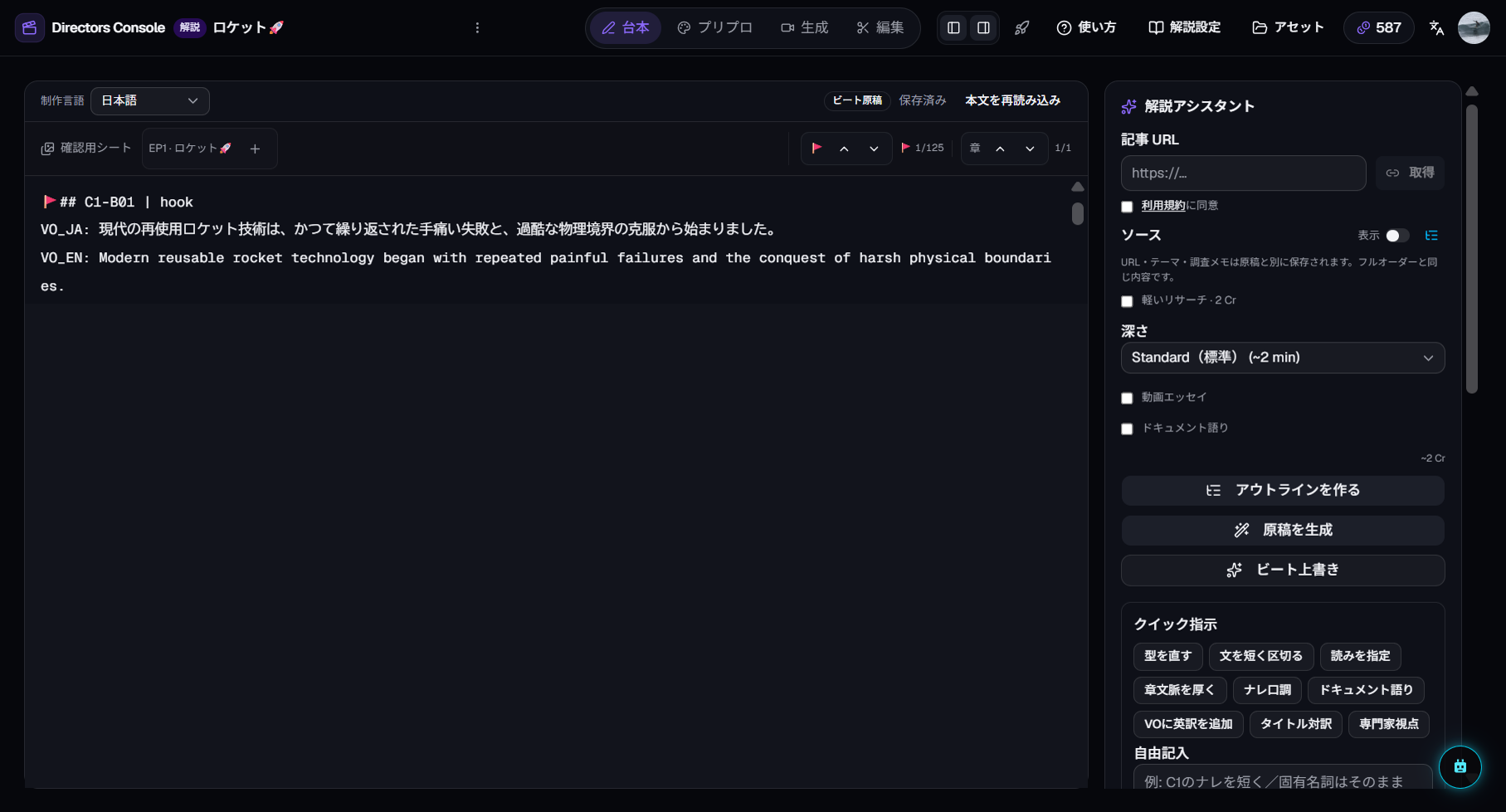
Press "Generate manuscript". Narration text is created for each beat within each chapter (C1-B01, C1-B02…).
Why two stages? Locking the outline first improves manuscript accuracy. You can skip the outline for short pieces (Brief), but for Standard or Deep content the payoff is significant.
2-4. Review and edit beats
The manuscript is divided by headings like 🚩## C1-B01. Edit any beat's narration text directly. Fix wording, correct facts, or adjust tone here — the changes carry through to TTS and everything after.
3. Prep — Staging and keyframes
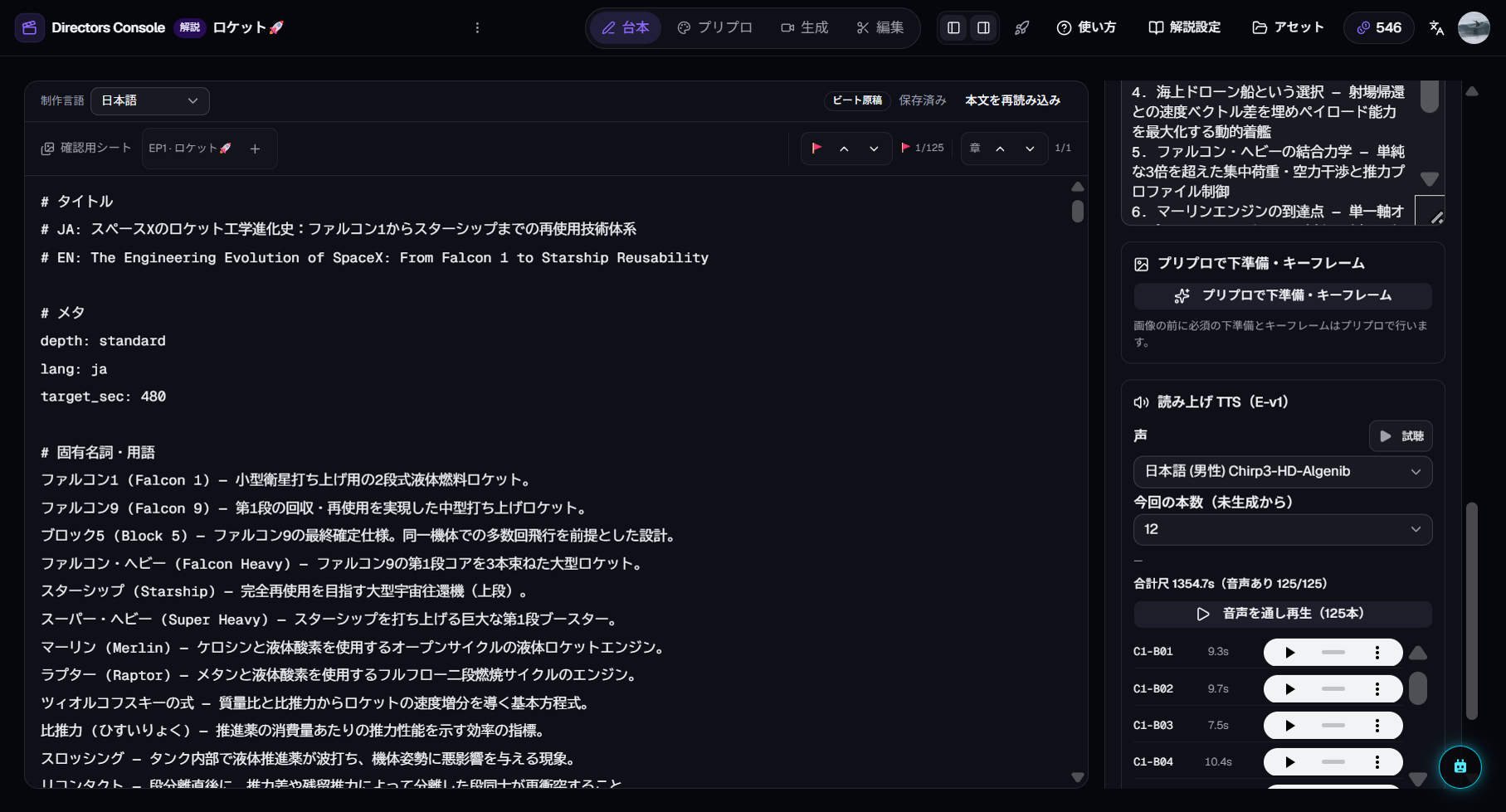
The Prep room is where each beat gets its visuals. You also generate TTS (text-to-speech) narration audio here.
3-1. Set the visual style
In the Prep settings panel, choose an art style. If a domain pack (visual rules tuned to a subject area) is available, review it too. The style applies to all beats.
3-2. Generate TTS audio
Press "TTS Generate" to create narration audio for each beat. Pick the voice persona in the Voice setting. You can regenerate just the chapter openers or individual beats later.
Why TTS before keyframes?TTS determines each beat's duration (how many seconds of narration). Knowing the duration helps judge whether the beat fits an 8-second video clip — so generating TTS first is recommended.
3-3. Run staging (thicken prompts)
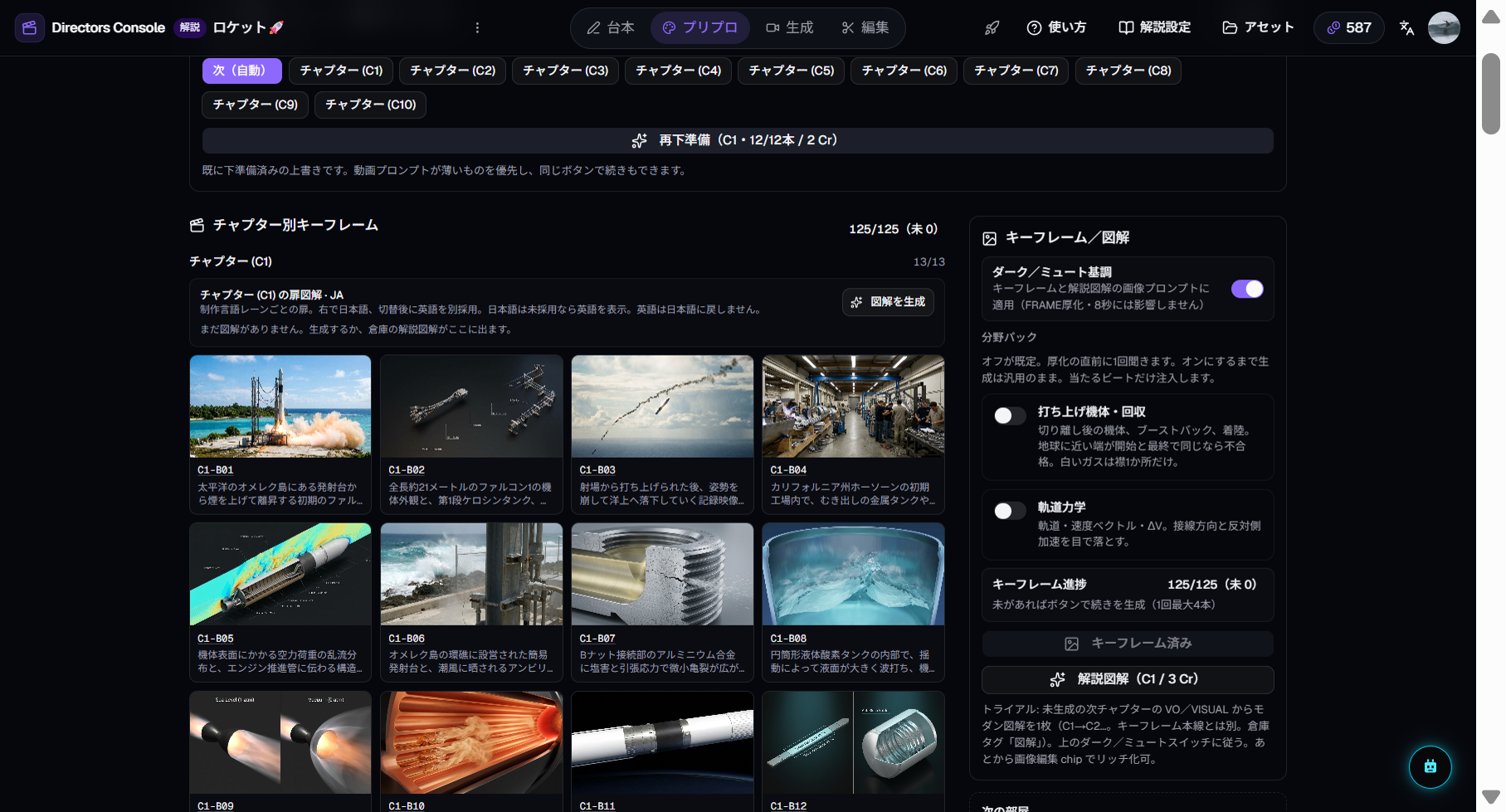
Before keyframes, run "Staging" to auto-generate frame prompts and video prompts for each beat. This uses the source text and narration to create visual directions.
3-4. Generate keyframes
Press "Keyframe Generate". A still image is created for each beat and displayed on the keyframe board.
Decision point:Keyframes become the opening frame of each video clip. If the visual direction is right here, the video will follow. If a beat's keyframe is off, regenerate just that beat before spending credits on video.
4. Shoot — Generate video
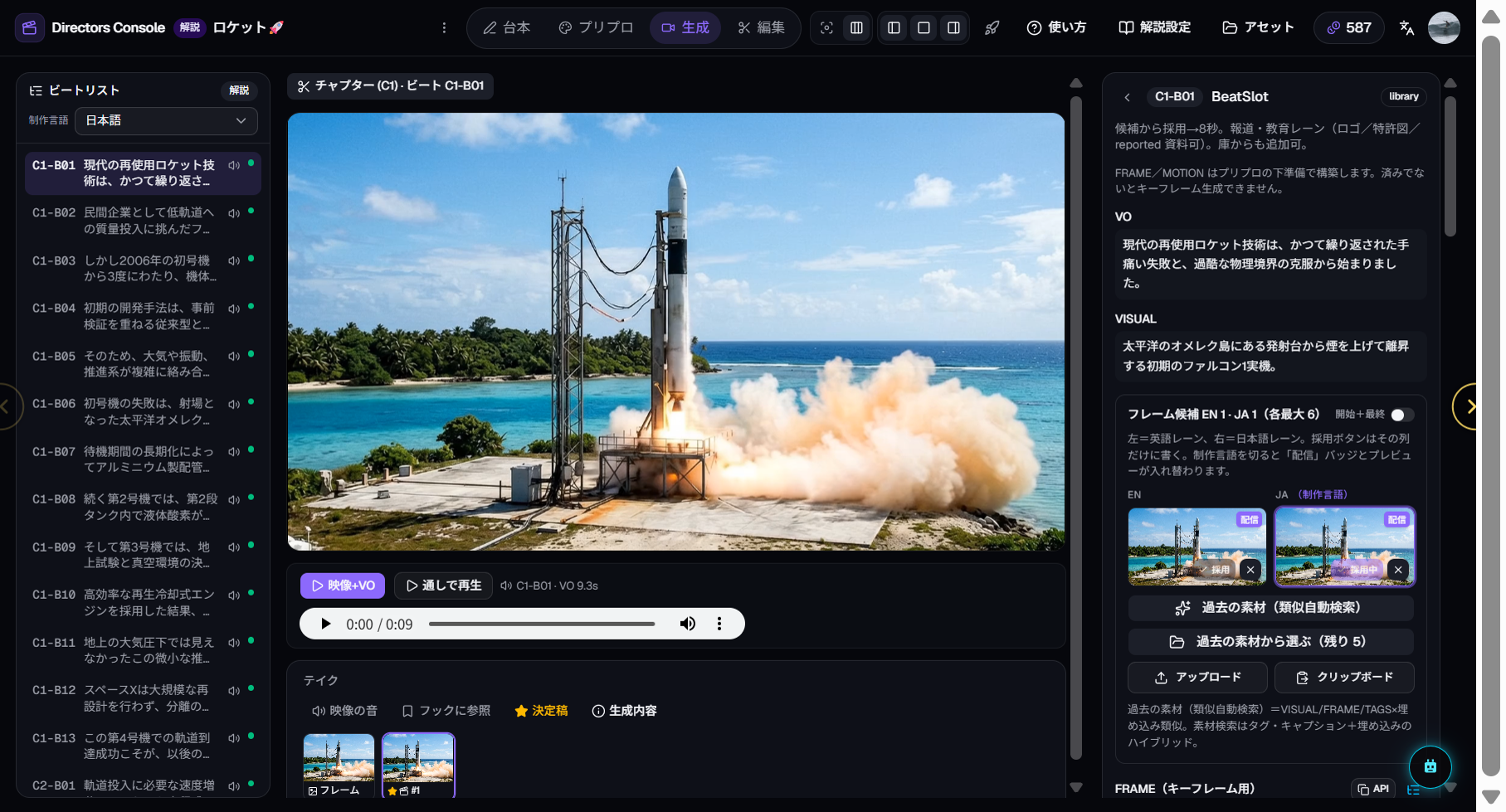
The Shoot room turns keyframe stills into 8-second video clips.
4-1. Voice-through preview
Before generating video, press "Voice through". Narration plays in beat order over the keyframe stills — a final check that picture and voice match.
4-2. Generate 8-second clips
Press the 8s videobutton. Each beat's keyframe becomes the opening frame of an 8-second clip synced to the narration.
Decision point: Video generation is the most credit-intensive step. If the keyframe looked right, the video usually does too. If the keyframe was off, fix it in Prep first.
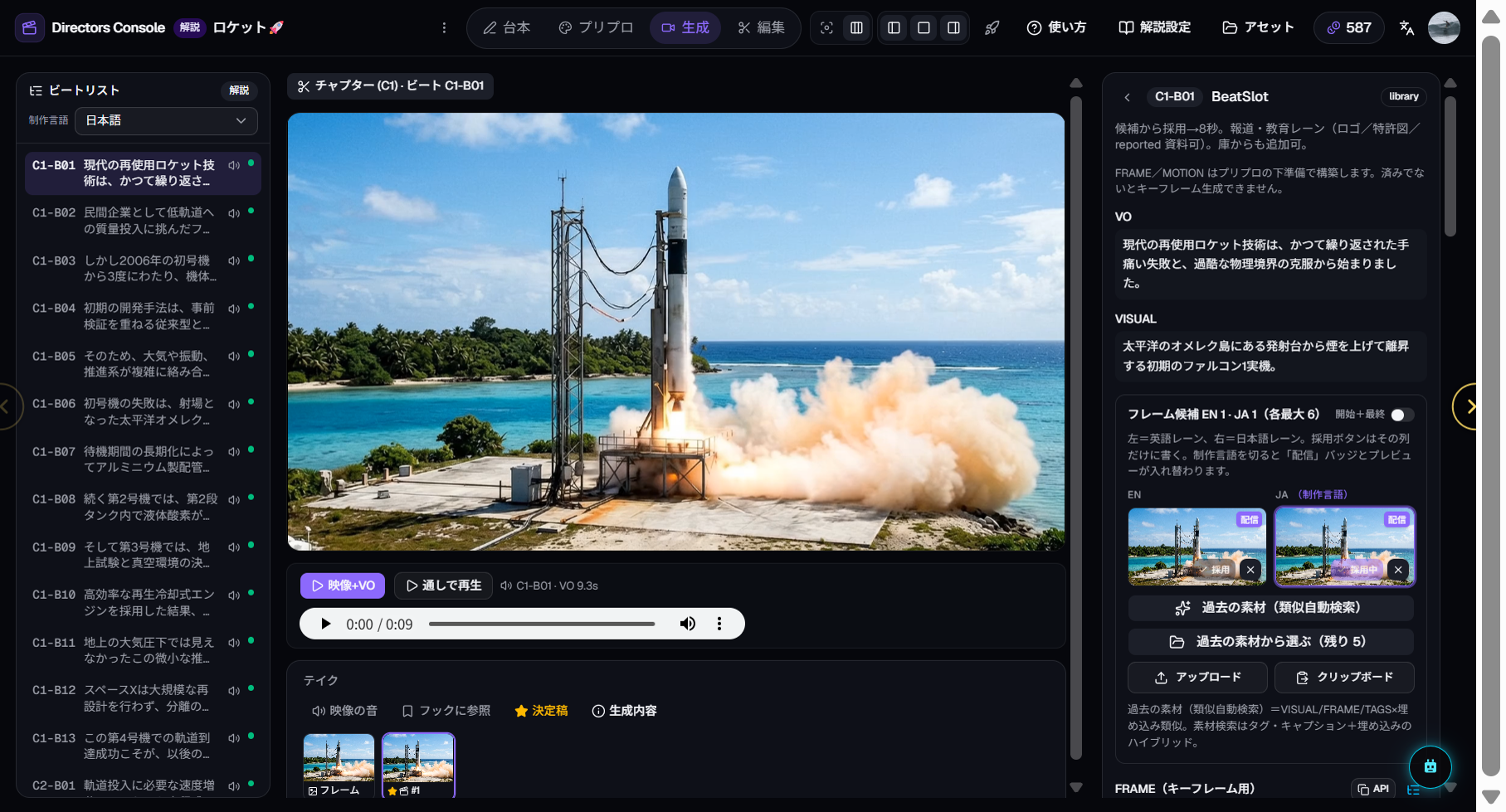
4-3. Review and adopt takes
Shooting the same beat multiple times produces takes. Pick the best one and adopt it — the adopted take goes into the Edit timeline.
5. Edit — Finish and export
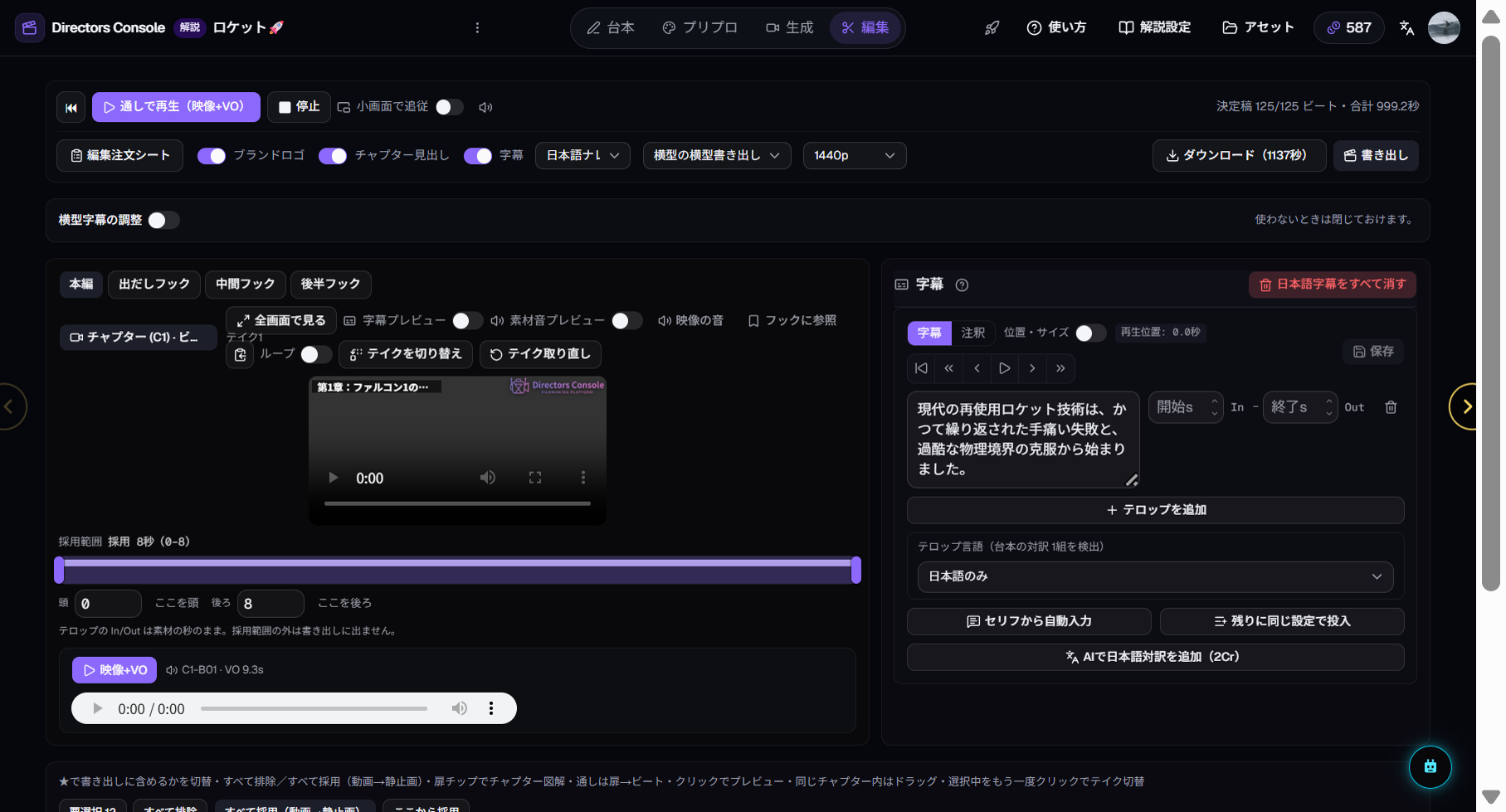
The Edit room assembles adopted takes into a timeline and adds finishing touches.
5-1. Review the timeline
Adopted takes appear in beat order. Use the preview to watch the full program.
5-2. Add subtitles
Choose from none / Japanese / English / both. Subtitles are generated automatically from the narration — no manual transcription.
5-3. Adjust the audio mix
Balance source video audio against narration. For explainers, narration is the star — source audio is typically low or off.
5-4. Export
Press "Export" and choose a resolution (original / 1080p / 1440p).
6. Credit costs
Manual and Full Order consume exactly the same credits for the same operations. The only difference is whether you see one lump estimate or approve each operation individually.
| Operation | Approx. |
|---|---|
| Outline generation | 1 Cr |
| Manuscript generation | 1 Cr |
| TTS (per beat) | 1 Cr |
| Staging (per chapter) | 1 Cr |
| Keyframe (per beat) | 1 Cr |
| 8s video (per beat) | 3 Cr |
| Export | 1 Cr+ |
Exact costs vary by beat count and model choice. Every operation shows an approval dialog with an estimate before spending, so there are no surprises.
7. Mixing with Full Order
Manual production doesn't mean you must do everything by hand. These hybrid workflows are practical:
- Full Order to keyframes → swap out weak beats in Prep → generate video in Shoot
- Write the script manually → hand off TTS and beyond to Full Order
- Full Order everything → fine-tune subtitles and audio mix in Edit
Full-Ordered work can be overwritten manually, and manually created work can be continued by Full Order. Room state is shared, so consistency is guaranteed regardless of which entry point you use.